
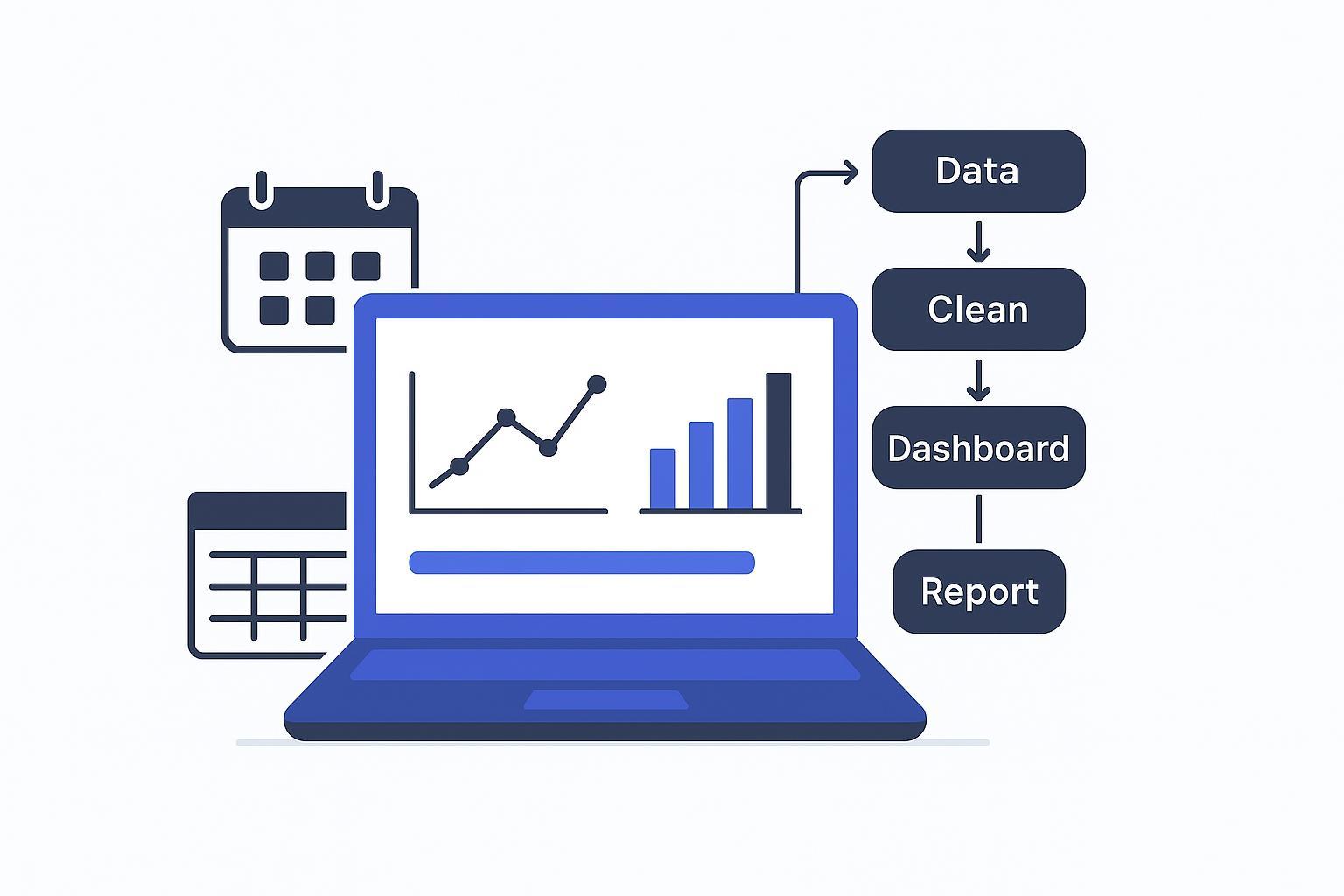

If you’ve ever rebuilt the same chart every Monday, you already know the problem: reporting becomes a second job. If you’re spreadsheet-first and don’t want to wrestle with complex formulas, hiData can help you automate the steps—from cleaning messy exports to generating charts and shareable reports—using simple natural language prompts.
A good automated reporting workflow fixes that. It’s a repeatable system that:
pulls data from the same sources every time
checks that the data is “safe to use”
refreshes charts and dashboards
sends the right snapshot to the right people on a schedule
This guide is tool-agnostic. The goal is to help you build the workflow once and keep it running, even if you’re not a BI expert.
What you’re building (in plain English)
Think of your workflow as a conveyor belt:
Collect the data (from ads platforms, your CRM, your bank export, survey files)
Standardize it (same column names, same date formats, same definitions)
Check it (no missing rows, no weird spikes, up to date)
Visualize it (charts that answer real questions)
Deliver it (scheduled reports + alerts)
The easiest way to fail is to start with tools. Start with decisions.
Step 1: Choose the decisions first, then the KPIs (your automated reporting workflow starts here)
Before you automate anything, write down the real decisions this reporting is supposed to support.
Examples:
“Should we increase ad spend next week?”
“Which product line is slipping and why?”
“Are we on track to hit this month’s revenue target?”
Now turn each decision into 1–3 KPIs.
A practical constraint: your main dashboard view should not be a wall of numbers. Domo recommends keeping a view to about 5–10 KPIs so people can actually absorb it and act on it (see Domo’s KPI dashboard guide (2026)).
Pro Tip: If you have 30 metrics you want to track, you probably need 3 dashboards, not one.
What to include for each KPI
For every KPI you plan to automate, capture:
the owner (who gets alerted when it’s off)
the update frequency (daily, weekly, monthly)
the decision it supports (one sentence)
the “good / okay / bad” thresholds
If a KPI doesn’t drive a decision, it’s a nice-to-have. Don’t build your workflow around nice-to-haves.
Step 2: Create a KPI dictionary (so the numbers don’t fight)
If two people can calculate “conversion rate” in two different ways, your automation will just spread confusion faster.
Create a KPI dictionary. It can be a simple Google Doc or spreadsheet as long as it’s easy to find and kept up to date.
For each KPI, define:
Name (exact label used in reports)
Formula (written clearly)
Data source(s) (which table/export it comes from)
Time window (last 7 days vs MTD vs QTD)
Filters (e.g., “exclude refunds,” “US only”)
Owner (who approves changes)
Why this matters: a KPI dashboard is more than charts; it’s a decision tool with targets, ownership, and a consistent refresh cadence (see Domo’s KPI dashboard guide (2026)). The dictionary is how you keep that system trustworthy.
Verify your result
Pick one KPI and have two people calculate it manually from the same raw data. If they don’t match, fix the definition before you automate.
Step 3: Set up data intake (sources → one reporting dataset)
Most recurring reporting breaks because the data arrives differently each time:
columns change
dates come in as text
rows get duplicated
someone “cleans it quickly” and forgets what they did
Your job is to make a single place where data lands in a consistent shape.
The minimum viable pipeline (for non-technical teams)
You can think in three layers:
Raw: the data exactly as it arrives (exports, connector pulls)
Clean: standardized columns and formats
Reporting: the final table(s) your charts use
If you’re spreadsheet-first, this can still work. The key is discipline:
don’t edit the raw data manually
do your cleaning in a repeatable way (saved steps, a template file, or a documented transform)
keep your reporting table structure stable
A concrete example (marketing)
Raw: weekly exports from Google Ads + Meta Ads + your CRM
Clean: normalize dates, channels, campaign naming
Reporting: one table with spend, leads, opportunities, revenue by week and channel
This is what enables scheduled reports. Not fancy charts.
Step 4: Add data quality checks before charts
Automation fails quietly when the data is wrong. So you need simple checks that run before reports go out.
A widely used approach is to monitor data quality across dimensions like completeness, accuracy, timeliness, uniqueness, validity, and consistency (see Pantomath’s 2026 guide to data quality checks and Soda’s guide to data quality dimensions).
You don’t need all checks on day one. Start with the ones that prevent “embarrassing report emails.”
The 7 checks that catch most reporting disasters
Freshness check (timeliness): Did today’s data arrive by the time you send reports?
Row-count sanity check: Is this week’s row count within a normal range?
Null check (completeness): Are required fields (date, amount, ID) missing?
Duplicate check (uniqueness): Did an import duplicate last week’s rows?
Range check (validity): Are values within sensible bounds? (e.g., CTR can’t be 200%.)
Schema check: Did a column disappear or get renamed?
Reconciliation check (consistency): Do totals match a known reference? (e.g., revenue vs finance export.)
⚠️ Warning: Don’t send scheduled reports if freshness fails. A “no report today” message with a reason is better than a confident report that’s missing half the data.
Verify your result
Run your workflow once with a known “bad” dataset (missing dates, duplicates). Confirm that the checks fail loudly and stop delivery.
Step 5: Build charts people can read (chart selection basics)
Once your data is stable, charts become the easy part.
A quick rule: pick the chart that matches the question.
Comparing categories? Use bars.
Showing a trend over time? Use a line.
Showing a relationship (two variables)? Use a scatter.
For a deeper refresher, Atlassian’s guide covers when to use the most common chart types (Atlassian’s essential chart types guide).
Don’t accidentally mislead people
Even honest teams can create misleading charts by accident. Truncated axes and unclear scales are common failure modes.
Tableau suggests using a checklist approach to evaluate visuals (source, chart type, axes, message) in its guide on spotting misleading charts (Tableau’s checklist for spotting misleading charts).
Quick “chart hygiene” checklist
Before a chart goes into an automated report:
Are the units clear? (%, $, count)
Is the time window labeled? (last 7 days vs MTD)
If you’re using bars, does the axis start at zero (or is the break clearly marked)?
Is there a benchmark line or target if this is a goal KPI?
Would someone misread this in 5 seconds on their phone?
Step 6: Schedule delivery and alerts
This is where automation actually saves time.
Pick a cadence that matches decisions
Daily: operational monitoring (inventory, tickets, cash balance)
Weekly: marketing performance, pipeline movement
Monthly: finance summaries, board-level rollups
Then decide what gets delivered in each format:
Dashboard: the live, interactive view
Scheduled report: a snapshot (PDF, slide, email summary) that goes out on a cadence
Alert: an interruption only when something crosses a threshold
Spider Strategies recommends a phased approach: start with high-impact KPIs, build the data foundation, then layer in alerts and governance over time (Spider Strategies on automating KPI reports).
What to include in a scheduled report
Keep it short. A good scheduled report answers:
What changed since last period?
Are we on track vs target?
What needs attention this week?
If your scheduled report is 14 pages, it’s not helping. It’s just a dashboard screenshot pack.
Verify your result
Schedule one report to send to yourself for two weeks before adding a wider audience. Fix formatting issues and false alerts while the blast radius is small.
Step 7: Keep it running: ownership, change control, and trust
Automation isn’t “set and forget.” It’s “set, monitor, and keep it boring.”
Here’s what keeps reporting trustworthy over months:
Assign owners to every KPI
Owners aren’t just for blame. They’re for speed.
If a KPI goes red:
who gets alerted?
who checks whether it’s real?
who decides the next action?
Create a simple change process
If someone wants to change a KPI definition, require:
an updated KPI dictionary entry
a quick note to stakeholders (“here’s what changed and why”)
a “break glass” rule for urgent fixes
Otherwise you’ll end up with charts that look consistent but mean different things across time.
Monitor three things
Freshness: did data arrive on time?
Failures: did checks stop delivery?
Usage: are people opening the dashboard or ignoring it?
If usage is low, the fix usually isn’t “more charts.” It’s clearer decisions, fewer KPIs, and better thresholds.
Tool selection scorecard (use this when you’re ready to choose)
You’re decision-stage, so here’s a practical way to pick tooling without getting lost in feature lists.
Score each category from 1 (weak) to 5 (strong). The best choice is usually the one with no “1s” in critical areas.
1) Data intake (connectors/import)
Look for:
can pull from your actual sources (ads, CRM, payments, surveys)
handles scheduled refresh reliably
supports audit trails or at least “last updated”
Watch-outs:
“works great” demos that require manual exports
brittle connectors that break silently
2) Data cleaning and transformations
Look for:
repeatable steps you can save
clear handling of joins, duplicates, and missing values
versioning or at least change history
Watch-outs:
cleaning logic that only lives in one person’s head
tools that make it easy to do one-off fixes but hard to reproduce them
3) KPI definitions and consistency
Look for:
a metric layer / semantic layer, or a single place to define formulas
ability to label time windows and filters consistently
Watch-outs:
each dashboard rebuilding the same metric differently
4) Visualization and charting
Look for:
the chart types you need (bar, line, scatter) with clean defaults
easy annotation for targets/benchmarks
mobile readability
Watch-outs:
shiny visuals that hide axes and context
5) Scheduling, distribution, and alerts
Look for:
scheduled reports (email/PDF/slides) with consistent formatting
threshold alerts that go to the right owner
the ability to route different views to different roles
Watch-outs:
alerts that fire too often (people will mute them)
6) Monitoring, reliability, and governance
Look for:
clear logs for refresh failures
data quality checks that can block delivery
access controls for sensitive data
Watch-outs:
no visibility when something breaks
Key Takeaway: The “best” reporting tool is the one you can keep correct and current with the team you actually have.
Next step (keep it simple)
Choose one report you rebuild every week.
Then implement just these in order:
KPI dictionary for that report
a stable reporting dataset
two checks (freshness + duplicates)
scheduled delivery
Once that’s boring, expand.