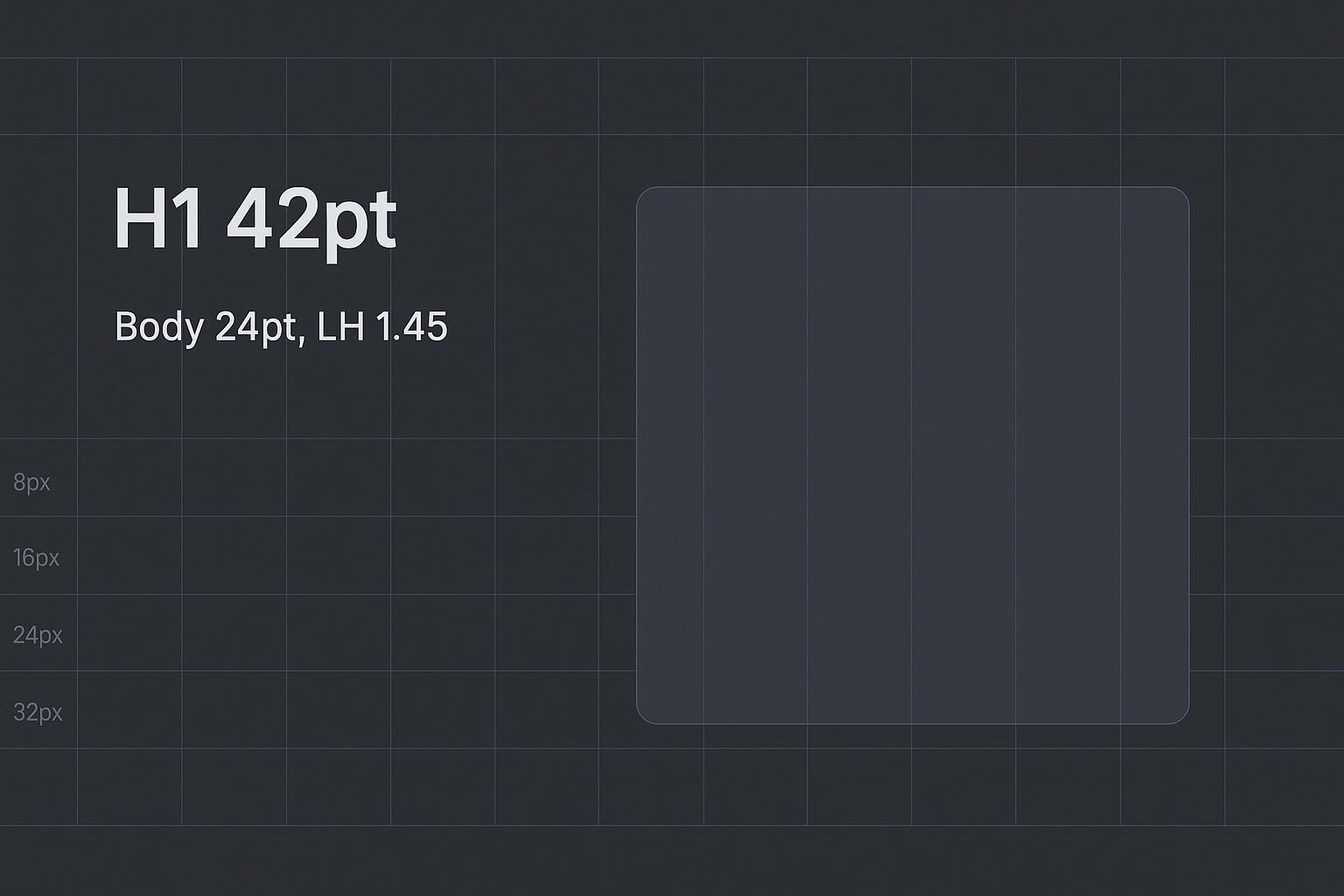
If you’ve tried AI slide generators, you’ve probably seen this: crowded text, jittery alignment, and titles that don’t match the body scale. The fix isn’t magic—it’s a small set of measurable rules for spacing, alignment, and typography you can encode in prompts and verify in post‑edit. Below you’ll find copy‑ready defaults, a prompt library, and a checklist for checking the clarity of your next draft.
Key takeaways
Establish a consistent system of margins, spacing, readable text blocks, and type sizes. Use the units and scale of your slide tool; pixel values from web design are not universal PowerPoint rules.
Left‑align multi‑line text, center only short single‑line headlines; keep a stable baseline/grid to avoid perceptual jitter.
Pair readable sizes with strong contrast. WCAG contrast ratios are useful design targets, but contrast alone does not establish that a deck is accessible.
Use prompts that state font sizes, line height, and gutters explicitly; then run a 10‑point post‑edit check.
Quick measurement rules (cheat sheet)
Treat these as starting points, not a universal slide standard. PowerPoint uses points for type and physical slide dimensions for layout; pixel-based tools use their own canvas scale. Judge the result at the size, distance, and screen where it will be presented.
Rule | Recommended Range | Notes and sources |
|---|---|---|
Canvas margins/safe zone | Keep critical content away from the edges; 5–10% margins per side can be a starting point | Heuristic; test on target screens and embeds |
Grid | Use a consistent column grid and proportional gutters; 12 columns is one option | Inspired by grid systems, not a requirement for slides; see the Carbon grid usage guidance |
Spacing tokens | Repeat a small set of gaps, such as 1× / 2× / 3× / 4× a chosen base unit | Design-system inspiration, adapted to the slide canvas: Material spacing methods and Carbon spacing tokens |
Body line length | Prefer short lines that can be read quickly; 45–65 characters is a prose reference, not a slide requirement | Background on screen text, to adapt and test for slides: Material typography guidance and Baymard’s readability research |
Line height | Use enough leading to avoid crowding; keep headings compact and test for wrapping | See Material Applying Type and typographic practice summarized by Smashing Magazine |
Font sizes (practice) | Starting points: title 36–48 pt; subhead 28–34 pt; body 20–28 pt. Aim for at least 18 pt for projected labels | Practitioner starting points; Microsoft recommends avoiding text smaller than 18 pt for presentations, and larger sizes may be needed: PowerPoint presentation tips |
Contrast ratios | 4.5:1 (normal), 3:1 (large); aim 7:1 for small labels | Borrowed as design targets from W3C WCAG 2.2; also test on the actual display |
These starting points combine slide-design practice with ideas from design systems and accessibility guidance. Material and Carbon are useful references for consistent spacing, while WCAG provides measurable contrast targets for digital content. None of those sources makes a fixed pixel grid or line-length range a universal rule for a projected presentation. Test the resulting slide on its intended display.
A practical system for spacing, alignment, and typography
Spacing
Use consistent spacing to create rhythm. Choose a base gap in the native units of your slide tool and reuse a few multiples. On a pixel-based canvas, 8/16/24/32 px can be an example rhythm; do not paste those numbers into PowerPoint without accounting for slide dimensions. Keep related elements, such as a chart and its caption, close together, and use larger gaps between groups. Leave enough negative space for the message to stand out, and pad charts until axes, labels, and legends no longer collide.
Alignment
Default to left alignment for multi-line copy to support scanning; short centered headlines can work on title slides. Keep a consistent grid across slides and align edges and baselines so text does not “swim” between slides. Twelve columns is one useful option for complex layouts, but a simple two-column grid may be enough. Place the key message where readers will notice it first, then group the supporting text and visuals in a clear reading order. Distribute spacing evenly and keep content out of the gutters.
Typography
Set a clear hierarchy:
Title: start around 36–48 pt, then adjust for the room, display, and amount of text. Keep multi-line titles compact without crowding.
Subhead: start around 28–34 pt and keep its hierarchy clear relative to the title and body.
Body: 20–28 pt is a useful starting range; use short lines and enough leading to avoid crowding. Limit yourself to one primary typeface with a small set of weights. Use weight, color, and spacing for emphasis before adding more sizes. For projected chart labels, aim for at least 18 pt and simplify the chart if they do not fit. High contrast cannot compensate for text that is too small to read.
Encode the chosen spacing, alignment, and type rules in your template, then check each draft at presentation size. A consistent system is useful only when the resulting slides remain readable.
Prompt library: copy and paste into your AI slide tool
Use these prompts as design instructions, then inspect the output. AI tools may not honor exact dimensions, font sizes, or layout rules; adjust the slide in its editor and test the final presentation.
Title slide
Create a title slide. Start with a 42 pt bold centered title and a 28 pt subtitle. Keep generous margins and enough space between the two. Use the slide template’s grid; shorten or reflow text if it wraps awkwardly. Check readability at presentation size.
Problem slide
Convert this summary into a single problem slide. Start with a 42 pt bold left-aligned title and 24 pt body. Use up to 3 short bullets, consistent gaps, and generous outer margins. Place one supporting visual on the right with enough padding to avoid label collisions. Split the slide if the text becomes dense.
Data slide
Design a data slide. Start with a 36 pt takeaway title and one chart. Leave clear space around axes and legends. Aim for at least 18 pt projected labels; reduce categories or split the chart if needed. Use strong text contrast, with 4.5:1 as a normal-text design target. Preserve all reviewed values and units.
Comparison slide
Create a two-column comparison with equal widths and a clear gutter. Start with 32 pt headings and 22–24 pt body text. Align corresponding headings and bullets across the columns. Use short phrases and consistent spacing; avoid forcing a fixed character count if it makes the copy awkward.
Executive summary slide
Summarize the reviewed deck in 3–5 short bullets. Start with a 36 pt title and 24 pt body text, generous margins, and consistent gaps. Include one verified key metric in bold. If the slide is crowded, reduce the copy or split it rather than shrinking the type.
Post‑edit checklist (printable style)
Check | What to verify | Pass/Adjust |
|---|---|---|
Fonts & sizes | Title 36–48 pt, subhead 28–34 pt, body 20–28 pt as starting points; aim for projected labels ≥18 pt | ☐ / ☐ |
Line height | Leading avoids crowding and awkward wrapping; check at presentation size | ☐ / ☐ |
Line length | Short, readable lines; no mandatory character count | ☐ / ☐ |
Margins/safe zone | Critical content stays clear of slide edges and possible cropping | ☐ / ☐ |
Grid/baselines | Consistent grid; align related edges and text baselines | ☐ / ☐ |
Spacing tokens | Repeated gaps in the tool’s native units; consistent within/between groups | ☐ / ☐ |
Contrast | ≥4.5:1 for normal text; ≥3:1 for large; aim 7:1 for small labels | ☐ / ☐ |
Bullet density | Short bullets; split dense paragraphs across slides rather than shrinking type | ☐ / ☐ |
Chart padding | Clear space around plot; axes and legend placed without collisions | ☐ / ☐ |
Accessibility | Meaningful reading order, alt text, and accessible export checks as supported by the tool | ☐ / ☐ |
Micro‑case 1: From crowded chart to readable data slide
Illustrative starting point (not a measured customer result): A bar chart is crammed edge-to-edge, with an 18 pt title, 12 pt labels in low-contrast gray, a legend hugging the plot, and a footnote touching the bottom edge. It contains the information, but it is difficult to read.
Applied fixes: Increase outer margins and simplify the chart to leave breathing room. Use a 36 pt title as a starting point. Move the legend away from labels, align it to the grid, and raise projected labels to at least 18 pt where practical. Keep the footnote inside the safe area; move detailed notes to a supporting slide if they would otherwise be too small.
Expected result to verify: Labels no longer collide, the title establishes hierarchy, and the footnote is readable. Test these changes on the intended display. This example illustrates a design check; it does not claim a measured reduction in scan time or review questions.
Micro‑case 2: Stabilizing a wobbly two‑column comparison
Illustrative starting point: Two columns have inconsistent inner padding, headings nearly the same size as body copy, and bullets drifting off their corresponding baselines.
Applied fixes: Place both columns on the same grid with a clear gutter. Start with 32 pt headings and 22–24 pt body text, then adjust spacing to fit. Align corresponding headings and bullets, shorten each point, and leave consistent gaps around both groups.
Expected result to verify: The left-right comparison is easier to follow because equivalent items line up and headings are distinct. Check it at presentation size rather than assuming that a grid alone guarantees readability.
Tool appendix: applying the system in common workflows
PowerPoint + Copilot: Define slide masters with consistent guides and default type sizes to give Copilot a clear starting structure; verify the generated hierarchy. Microsoft emphasizes on‑brand templates even if it doesn’t give numeric rules; see Microsoft’s Copilot template guidance. Use Arrange > Align/Distribute and the Selection Pane to check stacking order.
Google Slides: Use Guides and the Arrange menu to align/distribute. Slides doesn’t enforce margins like documents, so rely on your safe‑zone heuristic and manual guides. Test exports in the player you’ll present from.
Beautiful.ai and similar: Smart layouts can automate alignment/spacing, but they may not match your typography rules. Treat them as a starting point and validate against your checklist; see their positioning here: Beautiful.ai AI presentations overview.
Canva: Limit fonts, set hierarchy via size/weight, and explicitly adjust line height and letter spacing where needed. See Canva’s text formatting guidance.
Neutral micro‑example: turning spreadsheet data into a chart slide with hiData
Scenario: You have approved Excel or CSV data with monthly revenue and customer acquisition cost (CAC) across three channels. The table needs checking before its metrics become a slide. Revenue and CAC alone do not provide the ad-spend input required for ROAS.
Workflow: Upload the files to hiData AI Sheets and describe the task: “Standardize date formats, flag missing or duplicate rows, and summarize monthly revenue and CAC by channel. Show how each summary is calculated and flag metrics that lack supporting inputs.” Verify the units and aggregation rules: CAC is a ratio and should not simply be summed; recompute it from acquisition spend and new-customer counts when those inputs are available. Use separate charts when revenue and CAC have incompatible scales. Then use the reviewed analysis in AI Slides to draft a presentation. Apply the same spacing, alignment, and type checks: clear margins, one takeaway per slide, readable labels, and sufficient contrast. If labels are dense, reduce categories or split the view.
What this solves: It connects uploaded-file analysis with presentation drafting while keeping the reviewed numbers and design choices visible. Human review remains essential for calculations, hierarchy, reading order, and accessibility.
Why these practices are reliable
Contrast targets are adapted from W3C WCAG 2.2.
For background on screen typography, consult Material’s typography guidance and independent research like Baymard’s readability study.
Consistent spacing and grids can be adapted from enterprise design systems such as Material and Carbon, but slide dimensions and viewing conditions determine the final values.
AI can help produce a first draft, but productivity reports are not evidence that a specific deck is readable or accurate. Apply the checklist to the actual output and record the corrections it needs.
Next steps
Encode these defaults in your slide masters and AI prompts, then verify each draft with the checklist. For faster data prep before chart slides, consider processing your tables with hiData and then applying the same spacing, alignment, and typography rules.
For a spreadsheet-based presentation, review the data in AI Sheets and draft the narrative in AI Slides. Check the final presentation on its intended screen before sharing.