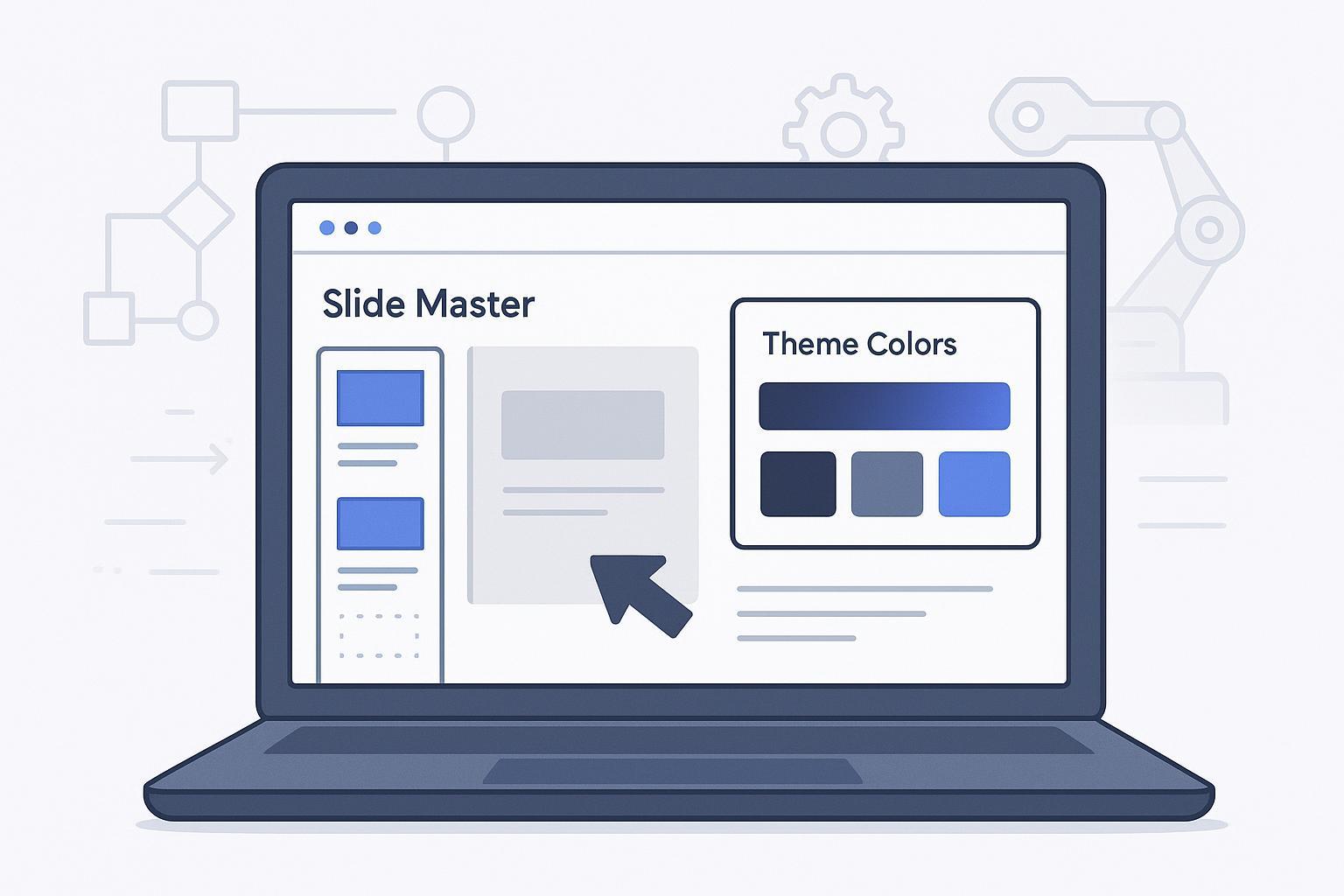
If you build RPA pitch, training, or operations-review decks under time pressure, start with theme colors and fonts, a logo on the master, and a reusable starter. This guide covers a manual Slide Master workflow and an optional Microsoft 365 Copilot Brand Kit workflow where your organization’s license and configuration support it. Consumer Designer brand kits are a separate feature with different usage terms.
By the end, you’ll have a process for branding a new deck, reviewing legacy slides, and creating a reusable theme and template. The effort depends on the deck’s size, source formatting, charts, and font availability.
Key takeaways
Two approaches: use Slide Master for a reusable manual foundation, or an available Copilot Brand Kit to assist with drafting and brand assets
Save both a theme (.thmx) for quick color/font alignment and a template (.potx) for repeatable layouts
For legacy slides, reapply the layout and use Reset to restore placeholder formatting; inspect independent text boxes and chart colors separately
Run an accessibility pass for contrast, reading order, alt text, and font size before sharing
Expect cross‑platform font differences; embed or switch to organization/cloud fonts when needed
Preflight checklist
Gather these assets once; it makes every future brand PowerPoint presentation faster to set up.
Item | What to have ready | Notes |
|---|---|---|
Colors | HEX/RGB for primary, secondary, accents | Plan Accent 1–6 in your palette |
Fonts | Heading and body families with licenses | Prefer cloud/system fonts for sharing |
Logo | SVG or high‑res PNG | Use SVG for crisp scaling |
Slide size | 16:9 (plus any alternates) | Set with Design → Slide Size; one size applies to the entire presentation |
Footer | Confidentiality line, slide numbers | Store on the master, not slides |
RPA slides | Process map, ROI summary, risk table, roadmap | Pre‑style as custom layouts |
Path A: Brand a PowerPoint presentation with Slide Master
Use a current desktop PowerPoint version for Windows or Mac. The ribbon paths below describe common desktop controls; Mac menus and customization options may differ, so use the corresponding theme and master controls in your version.
Open Slide Master and set theme fonts
Ribbon path: View > Slide Master. Select the top master.
On Windows, use Slide Master → Fonts → Customize Fonts to choose heading and body families where available. On Mac, select the appropriate theme font set or apply your approved template and adjust the master placeholders. Use theme-bound fonts rather than independent formatting in each text box. See Microsoft’s font guidance.
Define theme colors (accents and links)
Use the theme Colors menu and choose Customize Colors where available. On Mac, use Design → Variants → Colors → Customize Colors. Set Text/Background and Accent 1–6, plus hyperlink colors, then save with a clear name such as “Acme RPA v1”. See Microsoft’s Mac theme-color instructions.
Place the logo and footer on the master
Use Insert → Pictures to add the logo on the master, or on a specific layout when its placement varies. Enable the relevant footer placeholders, then use Insert → Header & Footer to enter the footer, enable slide numbers, and Apply to All as appropriate. Check the title-slide option and any layouts that hide background graphics.
Tune key layouts for RPA slides
Edit common layouts such as Title, Title and Content, and Two Content. Add suitable placeholders and brand graphics for process maps, ROI summaries, risk matrices, and roadmaps. Put editable sample tables and charts on starter slides in the template; static objects placed on the master cannot be edited as ordinary slide content in Normal view.
Apply changes to existing slides
Close Master View. If a slide does not update, choose Home → Layout to select the correct layout, then Home → Reset to restore its placeholders’ positions and formatting. Separate text boxes, imported graphics, and chart-specific formatting can still need manual changes. See Microsoft’s layout guidance.
Save for reuse
Design > Themes > More > Save Current Theme to create a .thmx that you can apply to any deck.
File > Save As > PowerPoint Template to produce a .potx starter that includes masters, custom layouts, and any starter slides.
Why this works: theme-bound content inherits shared colors and fonts, while layouts provide a consistent placeholder structure. Reset restores the selected layout’s placeholder formatting; it is not a universal rebranding command for every independently styled object. For an additional rebranding workflow, see UpSlide’s PowerPoint template guide.
Path B: Copilot Brand Kits and the separate Designer option
If your organization has an eligible Copilot license, suitable templates, and Brand Kit access, use it to assist with brand-consistent drafts. Validate the generated slides against your approved examples; a selected kit does not remove the need for review.
Ensure Brand Kits are created and published
In the Microsoft Copilot app, authorized creators can prepare kits with approved templates and brand assets. Official kits are governed by designated brand managers; licensing, permissions, and organization policies determine access. Follow Microsoft’s current official Brand Kit setup guidance.
Apply your Brand Kit in PowerPoint
In supported PowerPoint experiences, select the configured Brand Kit in the Copilot pane and use an approved template with representative sample slides. Microsoft explains that Copilot uses sample slides and template structure alongside brand assets; see its on-brand presentation guidance. Confirm availability in your tenant and inspect the output.
Check the separate Designer feature and its license
Microsoft Designer’s consumer brand-kit feature is distinct from organization-managed Copilot Brand Kits. The linked Designer FAQ describes personal brand kits and states that Designer is licensed for personal, non-commercial use with a Microsoft account. Do not treat that consumer feature as a license for corporate presentation assets; use your organization’s approved commercial tools and terms.
Notes
Availability and licensing vary by tenant and channel. Confirm access before depending on this path.
Even with Brand Kits, keep an approved .potx and use the correct layouts. Reset can restore placeholder formatting, while individual imported objects still need inspection.
Rebranding existing decks at speed
Legacy decks often have direct formatting and pasted charts. Normalize them quickly:
Fonts: Use Home > Replace > Replace Fonts to swap old families for your theme fonts. Reapply bullet and paragraph styles as needed.
Charts: After applying the theme, open each chart and reassign series and labels to Theme Colors (Accent 1–6). Copy‑pasted charts can retain source colors; recreating a few key charts in the destination deck is sometimes faster. Microsoft community guidance notes these copy/paste inconsistencies and why reassignment may be required.
Masters/layouts: apply the approved template or layout and inspect any remaining overrides before removing unused masters. Reapply the layout and use Reset for placeholders; review independent objects separately.
At scale: For large legacy libraries, specialized tools like UpSlide’s slide converter or Neuxpower Slidewise can automate master consolidation, font audits, and color normalization. The UpSlide rebranding guide above summarizes when automation pays off.
Accessibility and quality checks before sharing
Open Review → Check Accessibility and address the reported issues. Check logical reading order, meaningful alt text for images and charts, text contrast, and readable type; aim for 18 pt body text or larger when suitable for the room. Use purposeful motion only. When sharing, use approved fonts and embed them only where the application and font license permit. A PDF provides a fixed-layout sharing format, but its reading order and accessibility should also be checked.
Troubleshooting matrix
Symptom | Likely cause | Fast fix |
|---|---|---|
Slide ignores new fonts/colors | Local formatting overrides | Home → Layout to select the correct layout, then Home → Reset to restore its placeholders. Review independent text boxes and graphics separately. |
Logo missing or misaligned | Placed on slides instead of the master | View > Slide Master; place logo on the master or specific layouts so it cascades. |
Charts stay off‑brand | Copied from another file retained source colors | Reassign series to Theme Colors (Accent 1–6) or recreate in the destination deck. |
Fonts change on other machines | Non‑standard fonts or no embedding | Replace Fonts with organization‑approved families; embed where licensing allows or use cloud/system fonts. |
Distorted content after importing slides | Source and destination decks used different aspect ratios | Use Design → Slide Size to set the destination deck size; it applies to all slides. Inspect Ensure Fit/Maximize results and repair cropped or stretched content before saving the template. |
RPA slide starters that speed up every deck
Pre-build a handful of layouts and editable starter slides so authors can focus on content. Useful RPA starters include a process map, KPI/ROI summary, risk-and-controls matrix, and implementation roadmap. Use theme colors consistently, keep editable charts and tables on starter slides, and reserve the master for common branding and placeholder structure. Reset can restore placeholders; it does not rebuild every edited chart or process map.
Tools and resources
For governance and quick application across Microsoft 365, see Microsoft’s guide on creating and managing Brand Kits in the Copilot app.
To understand and preview on‑brand behavior in PowerPoint, read the Microsoft guidance on keeping presentations on brand with Copilot in PowerPoint.
For manual rebranding craft and when to add automation, the UpSlide rebranding PowerPoint templates article is a practical reference.
For the separate consumer Designer brand-kit feature and its personal, non-commercial usage terms, consult Microsoft’s Designer FAQ. Corporate workflows need an appropriately licensed tool.
When a slide refuses to conform, Microsoft’s article on editing and reapplying a slide layout explains how Reset restores layout behavior.
External references used above:
According to the Microsoft Support page on how to create and manage official Brand Kits: https://support.microsoft.com/en-us/microsoft-365-copilot/create-and-manage-official-brand-kits-in-the-microsoft-365-copilot-app
See the Microsoft guidance on keeping your presentations on brand with Copilot in PowerPoint: https://support.microsoft.com/en-us/powerpoint/copilot/keep-your-presentation-on-brand-with-copilot
For a production‑grade rebranding workflow, refer to UpSlide’s rebranding PowerPoint templates guide: https://upslide.com/blog/rebranding-powerpoint-templates/
For Designer brand kit behavior, consult Microsoft’s Designer FAQs: https://support.microsoft.com/en-us/designer/frequently-asked-questions-about-microsoft-designer
For Reset/layout behavior, read Microsoft’s guidance on editing and reapplying a slide layout: https://support.microsoft.com/en-us/powerpoint/edit-and-re-apply-a-slide-layout
Next steps
Create one .thmx and one .potx from Path A, test them on a blank file and on an older deck, and share them in your team’s template library.
If your tenant has Copilot Brand Kits, verify you can see and apply the “Official” kit in PowerPoint, then compare results with your manual template to decide your default workflow.
If you want to draft a presentation from reviewed analyses or KPI tables, use hiData AI Slides for slide creation and visual narratives. Apply and verify the organization’s approved branding in your presentation workflow. For recurring reporting, keep a separate source-data refresh and review process; the reporting ROI guide can help you measure the work involved.