Imagine you have a presentation in 10 minutes. You have a spreadsheet full of sales data, and you need to show "Growth" to your stakeholders. Do you pick a Line Chart? A Bar Chart? Or a flashy 3D Pie Chart?
Takeaways
- Decision Framework: Learn to match your specific question (Trend, Comparison, Distribution) to the right chart type using a proven decision map.
- Step-by-Step Execution: Follow two common methods to build charts in Excel and prepare your data correctly to avoid errors. Menu names and chart availability vary between desktop and web versions.
- AI Integration: Use natural-language prompts with Copilot or hiData AI Sheets to draft charts, then verify the data and chart settings.
Choosing the wrong visual can confuse your audience and hide your insights. Choosing the right one makes your message instant and undeniable.
In this beginner-first 2026 guide, we will solve this problem. We’ll provide a simple decision map to help you pick the best chart to use in Excel, show you how to build it clearly, and explain where AI tools fit into your workflow without the hype.
Part 1: How to Choose the Best Chart to Use in Excel
Think of your chart like a clear sentence: one message, no clutter. Start by asking, “What question am I answering?”
Then pick from this compact map, adapted from respected frameworks like the Financial Times Visual Vocabulary and Data-to-Viz.
Quick Comparison Table
| Question | Best Chart to Try First | When to Consider an Alternative |
| Trend over time | Line | Area to emphasize magnitude over time; stacked area for contributions to a total |
| Compare categories | Bar/Column (grouped) | Stacked bars for part‑to‑whole across categories; avoid 3D |
| Part‑to‑whole | Stacked bar/column; Pie (≤ ~5 slices) | Doughnut for a similar look; Treemap/Sunburst if hierarchy matters |
| Distribution | Histogram | Box & Whisker to show spread, quartiles, and outliers |
| Relationship | Scatter | Bubble if you need a third variable via size |
| Hierarchy | Treemap | Sunburst to emphasize structure and levels |
Note: Guidance is aligned with the FT Visual Vocabulary and the Data-to-Viz decision tree. If you’re unsure, Excel’s Recommended Charts can suggest a starting point. Microsoft’s chart type guide explains how line, area, stacked, and other chart families represent data.
Part 2: Prepare Your Data So Excel Charts Work Cleanly
Good charts start with tidy data. A few setup rules will save you headaches.
- Keep it tidy: Use a single header row with clear labels, no merged cells, and no blank rows.
- Use Excel Tables: Store the data in a contiguous range—or better, an Excel Table (
Ctrl/Cmd + T)—so your chart updates as data grows. - Format Correctly:
- For time series, put dates in one column and make sure Excel recognizes them as dates (not text).
- For comparisons, place categories on the left and numeric series in columns to the right.
- Avoid double headers; keep one variable per column.
Part 3: Build Your First Chart Step by Step
Here are two dependable paths to creating your visualization.
Method 1: Recommended Charts (Beginner Friendly)
- Select your data (include headers).
- Go to Insert → Recommended Charts.
- Choose a preview based on the decision map above (or switch to the All Charts tab).
- After insertion, use Chart Design and Format tabs to tweak the look.
Method 2: All Charts (Specific Control)
- Select your data.
- Go to Insert → pick a family (e.g., Column/Bar/Line) and subtype (e.g., Clustered Column).
- Tip: If you change your mind, select the chart and use Change Chart Type.
Quick Formatting Checklist
- Title: Write a specific title (“Q4 revenue grew 12%” vs "Sales Data").
- Axes: Add axis titles and units (“Revenue (USD)”).
- Cleanliness: Use readable labels without clutter. Keep gridlines subtle or remove them.
- Consistency: Use consistent color for the same series across charts.
- Scale: Avoid dual axes unless you truly need different scales.
Part 4: Use AI in 2026: Copilot Prompts & AI Generators
In 2026, you can describe the chart you want in natural language and let AI draft it—then verify and refine.
Using Copilot in Excel
Try prompts like:
- “Create a line chart showing Total Sales by Month from Table1; highlight seasonal peaks.”
- “Build a grouped bar chart comparing monthly sales by region for 2025; add a legend and sort by total.”
Micro-example with hiData AI Sheets
Scenario: Your uploaded Excel or CSV table has Month, Region, and Sales. In hiData AI Sheets, you want a quick comparison of monthly sales by region.
- Plain‑English input: “Sum Sales for each Month and Region, then compare monthly sales by region as a grouped column chart. Use Month on the X-axis, Region as series, and summed Sales as values.”
- What happens: AI Sheets analyzes the uploaded table and generates a draft visual. Review its grouping, totals, labels, colors, and sort order. This file-based workflow does not imply that the output is a native editable Excel chart object. For a presentation draft based on reviewed analysis, use AI Slides.
- Verify: Does it compare categories cleanly? Are months ordered correctly? Are region colors distinct and accessible?
Part 5: Chart‑by-Goal Guide
Below are the most common questions and the chart types that answer them well, plus quick Excel tips.
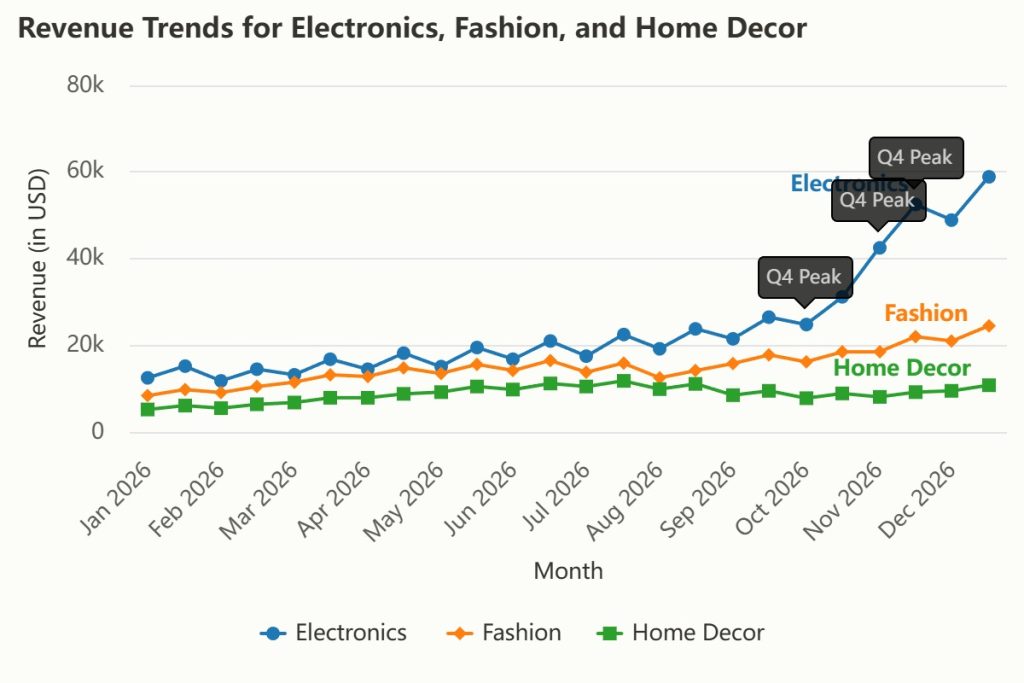
- Trend Over Time → Line or Area
Use Line for one or more series across consistent time intervals. Choose Area when you want to emphasize magnitude over time, or stacked area to show how components contribute to a total. An area chart does not calculate a cumulative total: calculate running totals first if that is the question you want to answer.
- Excel steps: Arrange data as Date (or Month) + series columns. Insert → Line (or Area).
- Troubleshooting: If the date axis looks wrong, ensure your dates are real dates, not text. For many lines, consider small multiples instead of one crowded chart.
- Compare Categories → Bar/Column
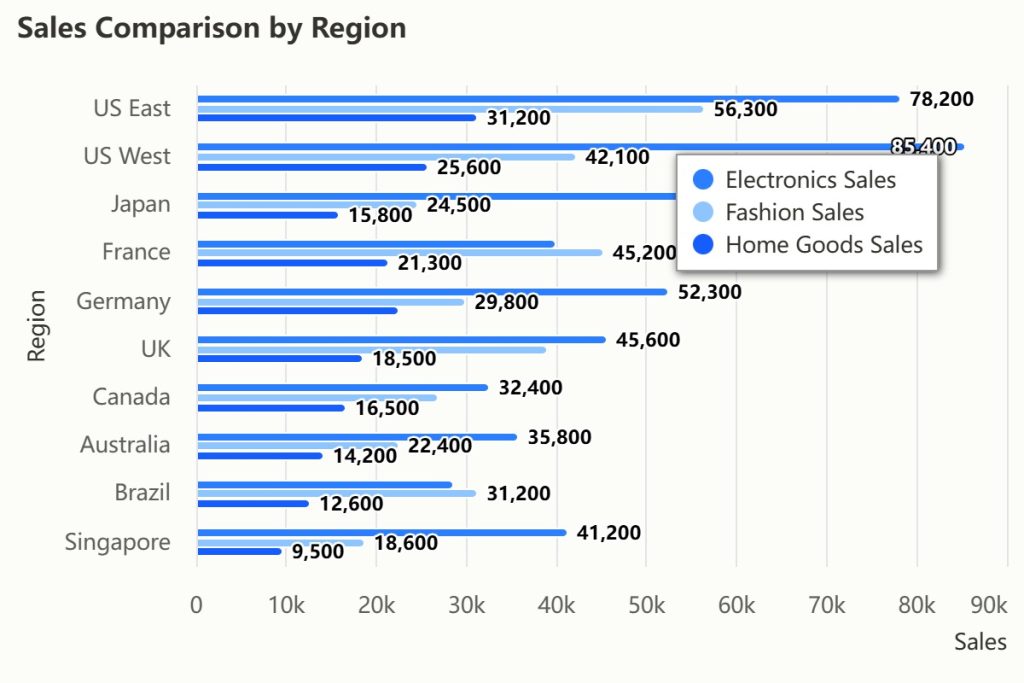
Bars and columns are the workhorse for comparing categories.
- Grouped (Clustered): Compare series side‑by‑side.
- Stacked: Show parts of a whole within categories.
- Excel steps: Data layout with categories in the first column and numeric series to the right. Insert → Column or Bar.
- Pro Tip: Keep the value-axis baseline at zero to avoid misleading readers: the X-axis for horizontal bars and the Y-axis for columns.
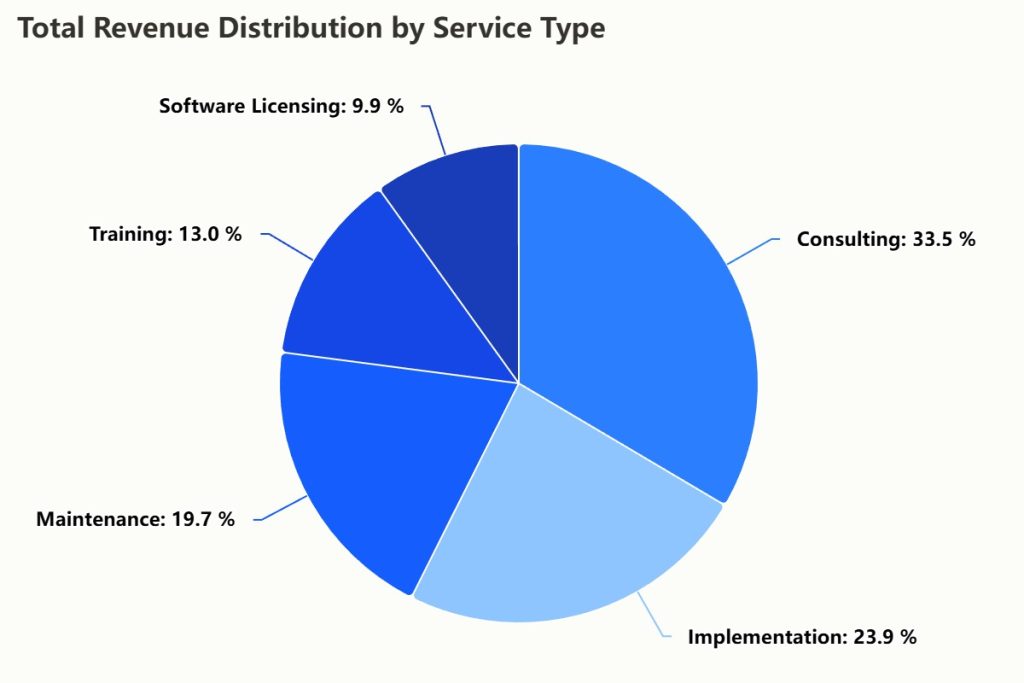
- Part‑to‑Whole → Pie, Doughnut, or Stacked Bar
Use a stacked bar to show composition across categories, or a 100% stacked bar to compare percentage shares. For precise ranking of individual parts, a simple bar chart is usually easier to read. Pies can work for a handful of positive values that form a single meaningful total—keep slices limited.
- Excel steps: For a pie, Insert → Pie; sort slices and label with percentages.
- Constraint: If you have more than 5 slices, switch to a Bar chart. It is easier for the human eye to compare lengths than angles.
- Distribution → Histogram & Box Plot
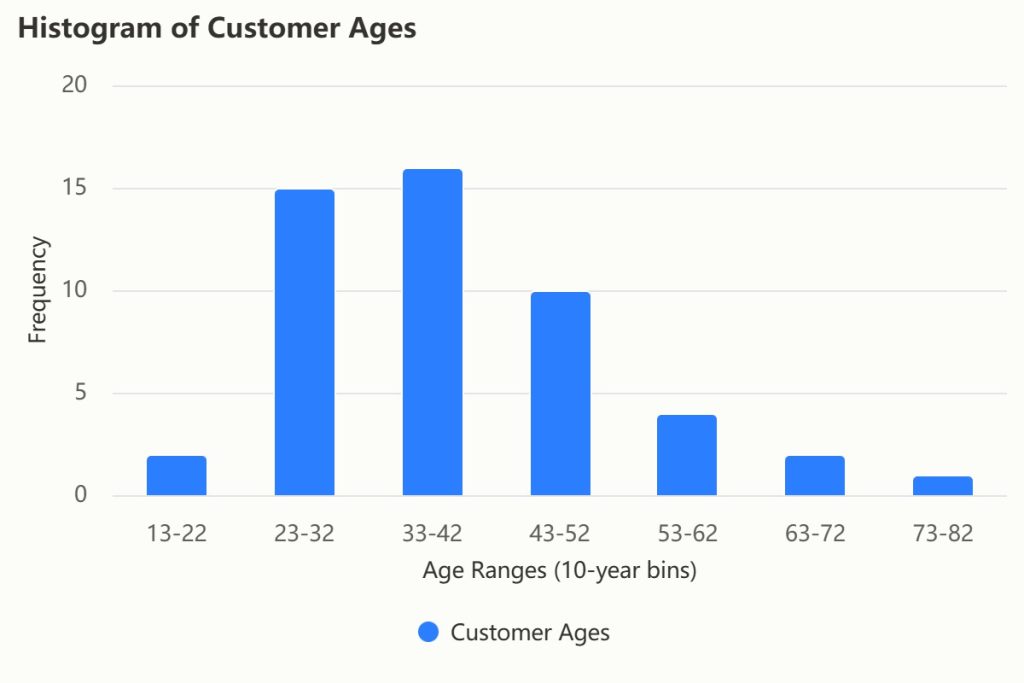
Pick a histogram to show how values fall into bins (e.g., age groups). Use Box & Whisker to summarize spread, quartiles, and outliers.
- Excel steps: Arrange a single numeric column; Insert → Statistic Chart → Histogram. Adjust bin width in the Format pane.
- Relationship → Scatter & Bubble
Use a scatter plot when both axes are numeric (e.g., Ad Spend vs. Sales). Bubble charts add a third variable through point size.
- Excel steps: Put X values in one column and Y values in the next. Insert → Scatter. Add a trendline only when the data and question justify it; a visible relationship does not establish causation.
Part 6: Formatting, Verification, and Accessibility Checklist
Before you share a chart, run through this quick list:
- Message first: Can a colleague explain the chart in one sentence? If not, simplify.
- Colors and contrast: Use high‑contrast palettes. Avoid relying on color alone—add markers, patterns, or labels for accessibility.
- Hidden and empty cells: If lines break, open Select Data → Hidden and Empty Cells to choose whether to connect points or show gaps.
- Alt text: Add alt text for screen readers (Right-click chart → View Alt Text).
Summary
Choosing the best chart to use in Excel comes down to clarity. Start with your question (Trend? Comparison? Distribution?), use the decision map to select your visual, and keep your data tidy. Whether you build manually or use hiData AI Sheets to draft the analysis and visual, always verify that the final result is easy to read.
Frequently Asked Questions
Q1: When should I use a Combo Chart in Excel?
A: Use a combo chart sparingly, for example to show revenue and profit margin together. If a secondary axis is necessary, label both units and check both scales carefully: their bounds can change the apparent relationship. Separate charts are often clearer when the combined view is hard to interpret.
Q2: Why do experts say to avoid Pie Charts?
A: Experts often dislike pie charts because the human eye struggles to compare angles and areas accurately. They are acceptable for simple "part-to-whole" stories with fewer than 5 slices (e.g., Market Share). For detailed comparisons or many categories, a Bar Chart is almost always a superior choice.
Q3: Can AI generate Excel charts automatically?
A: AI tools can draft charts from natural-language instructions, but the workflow differs by product. Copilot works with supported Excel features; hiData AI Sheets analyzes uploaded spreadsheet data and generates visuals. This does not guarantee a native editable Excel chart export. Treat every output as a first draft and check data selection, aggregation, labels, and title accuracy before publishing.