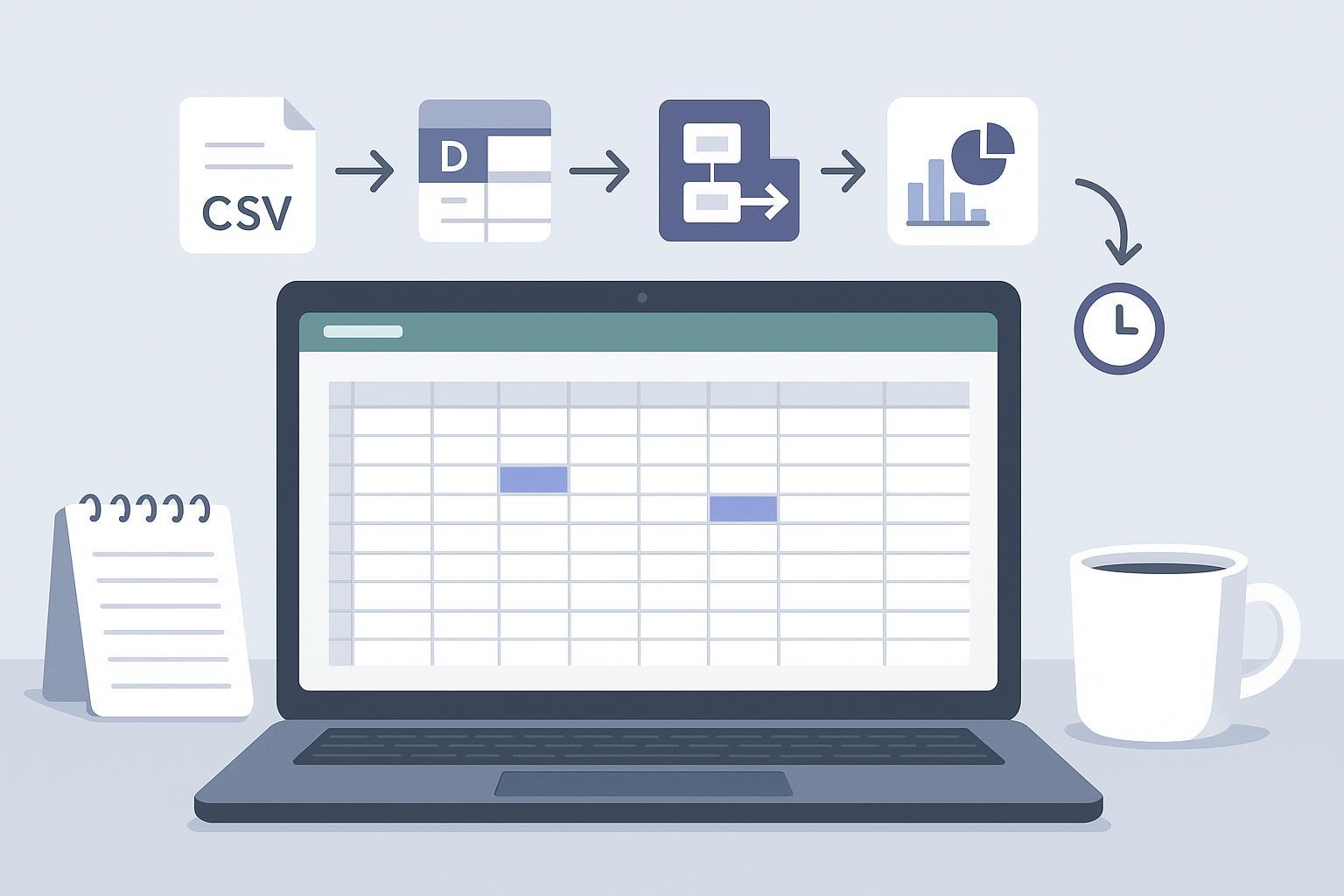
Excel automation tools are features or services that take repeatable spreadsheet steps—importing a CSV, cleaning and deduping rows, merging product data, building a pivot and chart, and refreshing or distributing the report—and make them run with little to no manual work. For most small teams, the practical landscape breaks into four categories:
What “Excel automation” means for non‑technical teams
Microsoft‑native: Power Query for repeatable data shaping; Office Scripts to record or write scripts; Power Automate to schedule/orchestrate; and Copilot for Excel to assist with formulas and analysis.
No‑code SaaS add‑ons: Third‑party tools that connect to spreadsheets/files to clean, enrich, visualize, and export without writing code.
iPaaS integrations: Zapier/Make to move data between Excel and other apps and trigger cross‑app actions.
Scripting/low‑code: VBA, Python in Excel, and xlwings for more control—useful, but heavier to maintain for non‑technical teams.
If you’re wondering how to automate Excel tasks without jumping into programming, start with Microsoft‑native options and sprinkle in iPaaS or a no‑code add‑on when you need cross‑app steps or faster report outputs.
How to automate Excel tasks with an eCommerce orders CSV (before → after)
Let’s use a familiar dataset: an Orders CSV with columns like OrderID, Date, Email, SKU, Channel, Qty, and Price. The outcome you want is a weekly, refreshable report that’s clean, deduped, enriched with product details, summarized by channel/SKU, charted, and optionally scheduled to distribute.
Here’s a reproducible, tool-agnostic path using an illustrative orders dataset. Adapt the field names and validation rules to your own export:
Import and clean (Power Query)
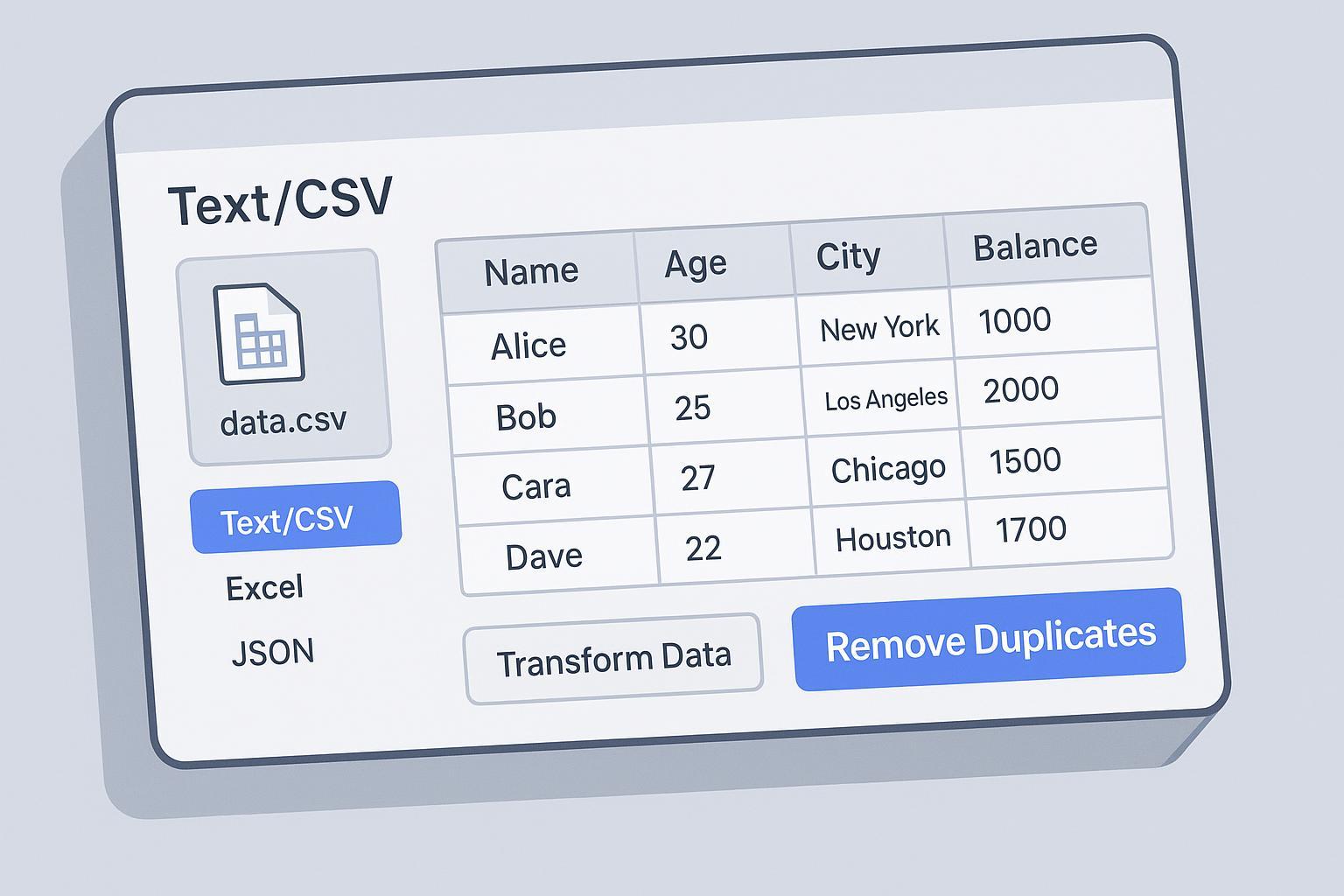
Use the Text/CSV connector and set the correct data types (dates, numbers). Save the query so it’s refreshable. According to Microsoft’s documentation, Power Query provides a GUI for transformations like remove duplicates, split/merge columns, change data types, and pivot/unpivot, all recorded as steps you can refresh later. See the overview in Microsoft Learn’s Power Query guide: Power Query for repeatable data import and transformation.
Dedupe by business keys (Power Query)
Identify the row grain before removing duplicates. An order may contain several legitimate product lines, so OrderID + Email alone is usually not unique. Prefer an immutable line-item ID, or a documented composite key that distinguishes order lines; use OrderID + SKU only if each SKU appears once per order. Keep split shipments, refunds, and legitimate repeated lines according to your business rules. Review suspected duplicates before removal, and reconcile row counts, quantities, and revenue after the saved query steps run.
Enrich with product details (Power Query → Merge)
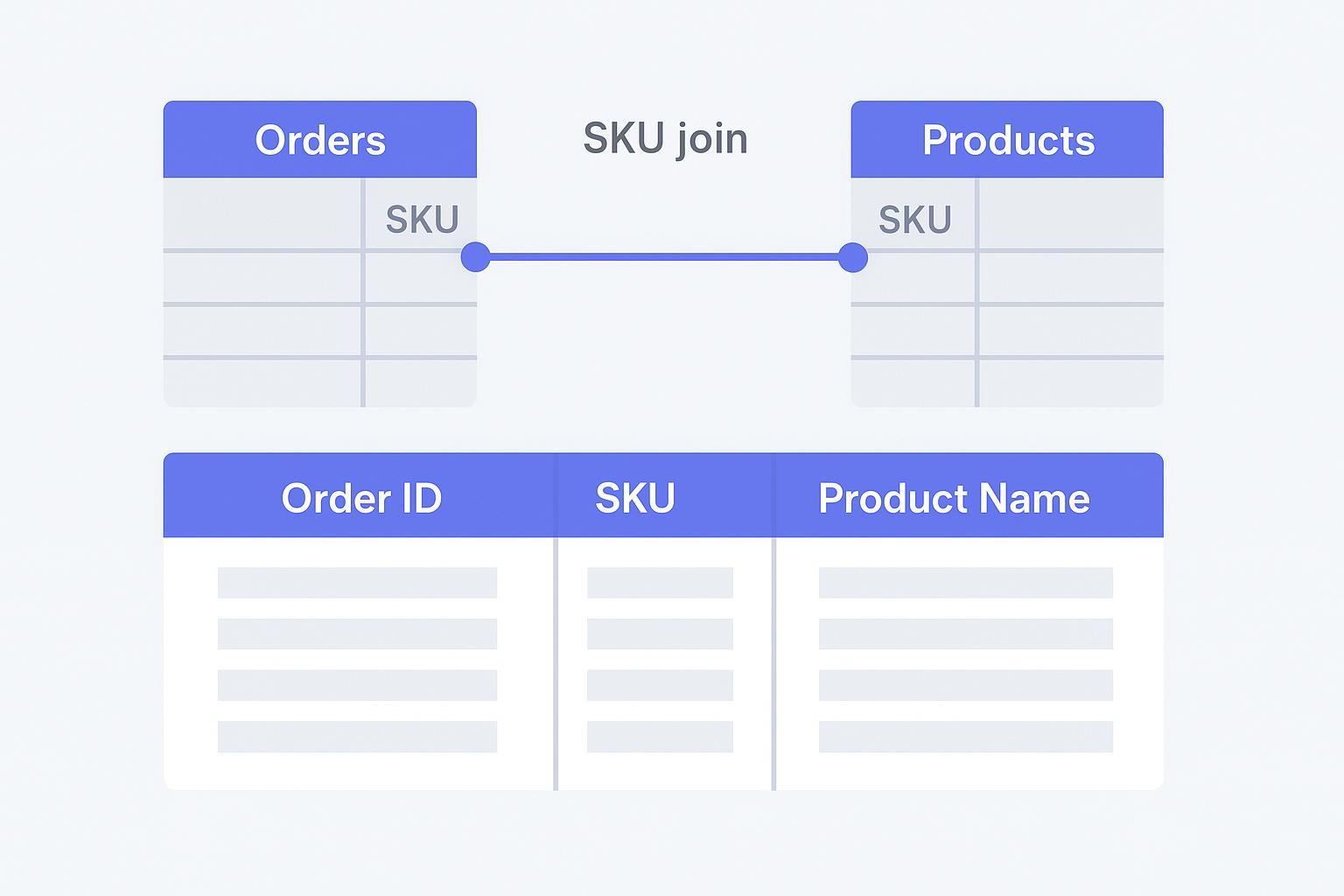
Bring in a Products table (Excel or CSV) and confirm it has exactly one applicable product row per SKU/ProductID before merging. If it contains regional or historical variants, choose the appropriate keys and effective date rather than arbitrarily dropping rows. Use a left join to preserve order lines, add attributes such as Category or UnitCost, and review unmatched SKUs. After expanding the merge, confirm that order-line counts, quantities, and revenue have not increased unexpectedly. Power Query’s Merge joins are part of its standard toolkit described in the Microsoft Learn overview cited above.
Summarize and visualize (PivotTable + Chart)
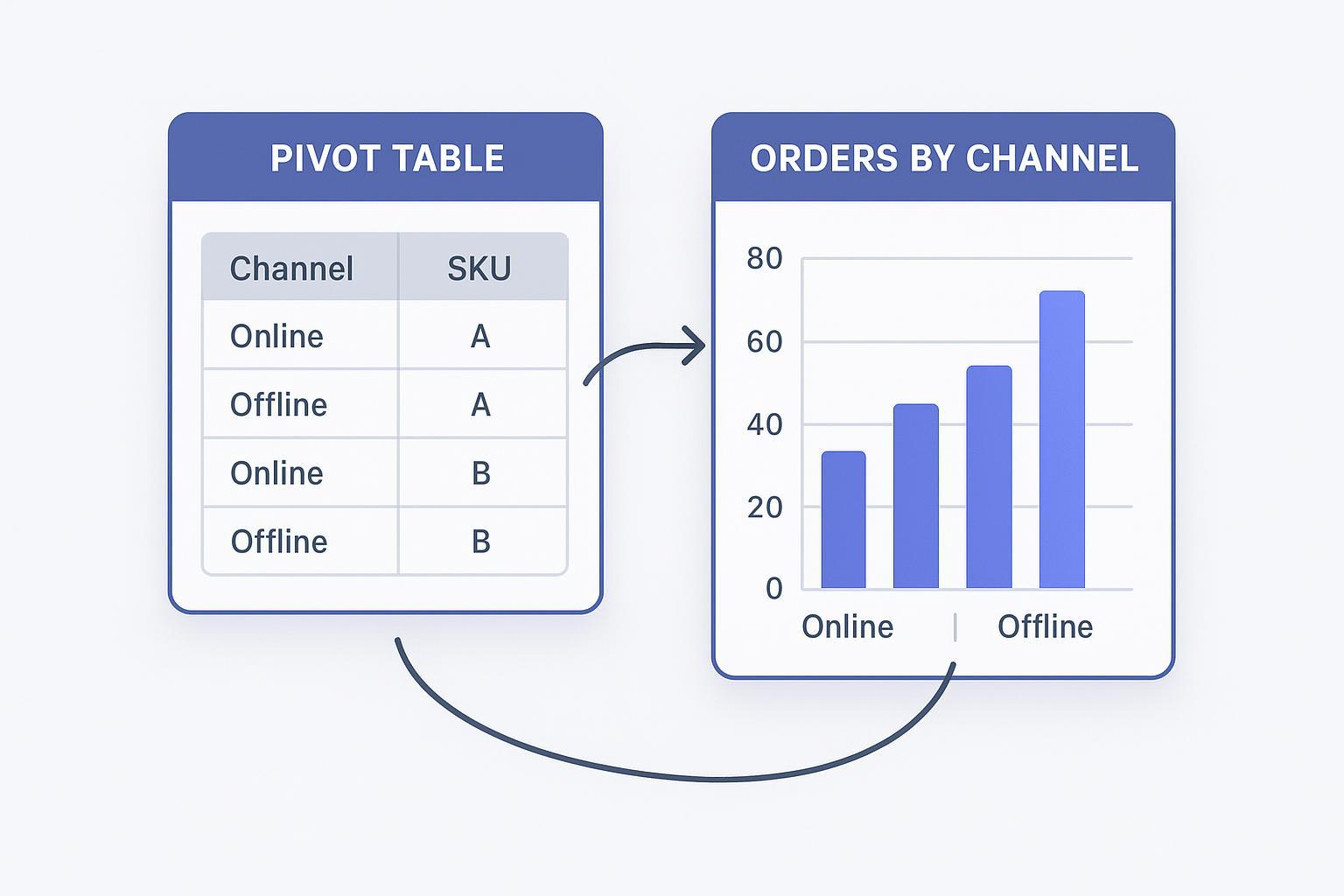
Load the cleaned/enriched result to a sheet. If Price is the per-unit selling price, calculate line revenue as Qty × Price, then apply the export’s documented discount, refund, tax, and shipping treatment. Confirm totals against the source system. Build a PivotTable by Channel and SKU, aggregate Qty and Revenue, and insert a column chart. Copilot for Excel can assist with multi‑formula prompts and stepwise guidance when you’re shaping calculations or formatting visuals. Microsoft highlighted these capabilities during 2024 updates to Copilot and Excel; see the feature roundups in the Tech Community post: What’s new in Excel (July 2024) — Copilot enhancements.
Validate refresh support, then schedule distribution
Power Automate can schedule supported Office Scripts actions, pass data into a workbook, and send a reviewed output. It does not automatically replay a saved Power Query pipeline. Microsoft documents that scripts run from a flow cannot refresh most connections or PivotTables;
refreshAllDataConnectionsrefreshes only Power BI sources. See Office Scripts refresh limitations in Power Automate. For the CSV/Power Query workflow here, refresh in a supported Excel session, verify the result, and then distribute it. Unattended operation requires a separately tested ingestion and calculation path.For a presentation, use the checked report table as input to a slide-authoring workflow. Do not assume that the Excel Online connector or an Office Script provides a built-in, one-click conversion to PowerPoint. Keep slide generation and final number checks as explicit steps.
That’s the backbone. Power Query records the reusable transformation recipe; refreshing it requires a supported Excel environment. Power Automate can coordinate supported actions and distribution after data freshness has been verified.
Tool‑by‑tool checklist: what each category automates
Below is a quick reference to map common steps in “How to automate Excel tasks” to the most natural tool category for non‑technical users.
Step | Microsoft‑native | No‑code SaaS add‑ons | iPaaS (Zapier/Make) | Scripting/low‑code |
|---|---|---|---|---|
Import CSV / set data types | Power Query | Often supported | Pull/push rows, not rich typing | Python/xlwings/VBA possible |
Clean & dedupe | Power Query steps | Often supported | Not in‑grid; combine with PQ | Python/pandas or VBA |
Enrich via lookup/merge | Power Query Merge | Often supported | Limited; better in‑grid or script | Python/pandas, VBA, xlwings |
Summarize & chart | Pivot + Chart (Copilot assists) | Often supported | Not in‑grid visuals | Python (analysis) + xlwings/VBA (objects) |
Schedule/notify/distribute | Power Automate for supported scripts and distribution; validate refresh separately | Often supported | Strong cross‑app triggers | Power Automate Desktop + scripts |
How to choose your automation path
Here’s a simple way to decide without overthinking it:
If your work is mostly in-sheet cleanup and repeatable transformations, start with Power Query. It records each step for later refresh in a supported Excel environment. Add Power Automate for supported script actions and notifications after verifying freshness; test any unattended ingestion and calculation path separately.
If you need to move data between apps—say, add new Shopify orders to an Excel table or email a stakeholder when a KPI changes—use iPaaS. Zapier’s Excel connector shows the model: triggers on new/updated rows and actions to add/update rows in a table; see the help docs: Work with Microsoft Excel in Zaps. Before setting this up, check Zapier’s Excel prerequisites: the connector requires a paid Microsoft 365 Business or Enterprise account and supported cloud-hosted .xlsx files in OneDrive for Business, rather than local workbooks or a personal Outlook account. Running Office Scripts through Power Automate also requires an eligible Microsoft 365 business license; confirm tenant access and permissions before building the flow.
If you need advanced modeling or programmatic control of Excel objects (build sheets, format ranges, manage charts via code), consider xlwings or VBA. Note that Python in Excel runs in a cloud sandbox and can’t directly manipulate workbook objects; xlwings runs locally and can. For a concise comparison, see: xlwings Lite vs. Python in Excel.
Scheduling, distribution, and maintenance
Automations are only helpful if they keep running:
Use Office Scripts for supported workbook actions, such as writing imported rows, checking ranges, or formatting a prepared result. Power Automate can schedule the script and route its output, but must not be treated as a general Power Query or PivotTable refresh service. Microsoft’s integration guide explains parameters and returned values; check the refresh limitations linked above before deploying the flow.
Document where the data lives (OneDrive/SharePoint vs. local), who owns the flow, and the refresh cadence. Store scripts and workbook versions in a shared, version‑controlled location.
Plan for schema drift: if the CSV’s columns change, your query may break. Keep an eye on change logs and add guardrails (e.g., checks for expected headers) where possible.
Security and privacy quick checklist
Know where code runs: Office Scripts can run in Excel sessions or through Power Automate, subject to the platform’s API limits. Python in Excel calculations run in Microsoft’s cloud; Power Automate Desktop, VBA, and local xlwings automation run on a machine you manage. Review storage, permissions, and the execution environment for your chosen approach.
Use least‑privilege identities and managed connectors. If you adopt iPaaS, coordinate with IT on provisioning and group scoping (Microsoft Entra can provision users/groups to Zapier); Microsoft provides a tutorial on SCIM provisioning patterns: Microsoft Entra provisioning for Zapier.
Monitor both flow failures and silent stale-data outcomes. Check the source timestamp, imported row count, reporting period, and control totals before sending a report; a successful script status alone does not prove that queries or pivots refreshed.
Alternatives, tradeoffs, and next steps
No-code SaaS tools can offer natural-language cleaning, analysis, and charting for teams working from uploaded files. For example, upload your orders export to hiData AI Sheets, ask it to flag suspected duplicate order lines and summarize revenue by channel, then compare the results with your control totals. Use AI Slides if you need a presentation from the reviewed findings. This is a file-based workflow; it does not assume native store connectors or scheduled refresh. Choose the approach that fits your data access, refresh requirements, and team skills.
Resources and official docs
Power Query overview (what it is, step recording, connectors): Microsoft Learn — Power Query overview
Office Scripts + Power Automate integration: Microsoft Learn — Run Office Scripts with Power Automate
Copilot for Excel feature highlights (2024): Microsoft Tech Community — What’s new in Excel (July 2024)
iPaaS example (Excel triggers/actions): Zapier Help — Work with Microsoft Excel in Zaps
Scripting boundary reference: xlwings Lite vs. Python in Excel