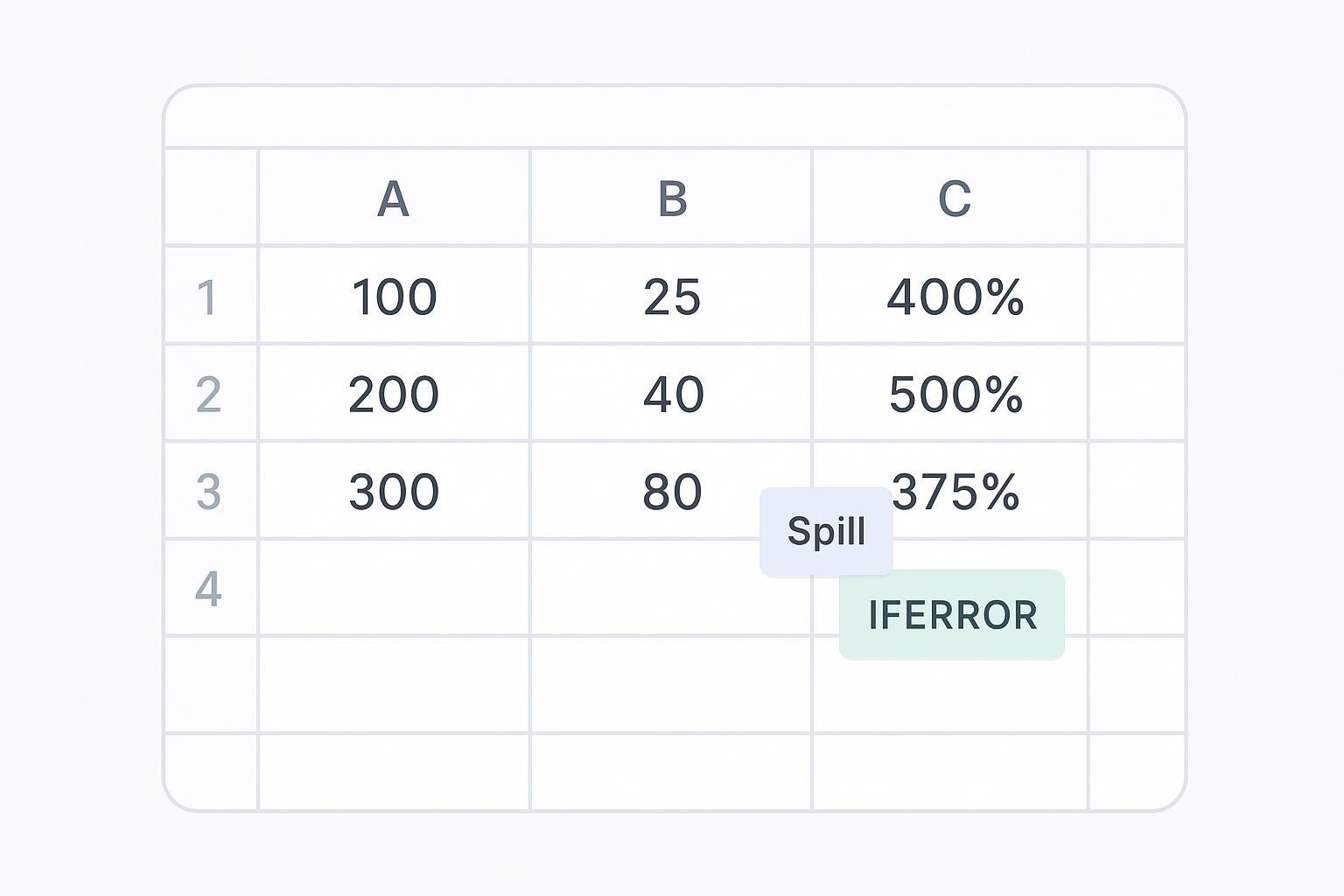
If you need a quick, reliable way to calculate ratios—like revenue per user or cost per unit—Excel makes it easy. You can divide two columns in Excel with the / operator, copy the formula down with the Fill Handle, use a single dynamic array formula in Microsoft 365, or perform an in-place division with Paste Special. This guide shows each option and how to prevent #DIV/0! errors.
Key takeaways
You’ll divide two columns in Excel most often with a simple formula like =A2/B2 and copy it down the column. In Microsoft 365, you can divide entire ranges at once (for example, =A2:A100/B2:B100) and let the results “spill” automatically. If you need static values, Paste Special > Divide can rewrite numbers in place. Use IFERROR to flag or leave blank results with invalid denominators, and clean inputs that are stored as text before you start. An error fallback is a display choice, not a valid calculated ratio.
Quick method chooser to divide two columns in Excel
Your scenario | Best method |
|---|---|
Any Excel version; you’re comfortable copying formulas down | Type =A2/B2 in the first result cell, then use the Fill Handle |
Microsoft 365; you want one formula for the whole column | Use a dynamic array: =A2:A100/B2:B100 (spills results) |
Desktop Excel; you want static, in-place results (no formulas) | Paste Special > Divide (overwrites values) |
According to Microsoft Support, Excel uses the “/” operator for division in formulas (e.g., =A2/B2). See the official overview in Multiply and divide numbers in Excel for examples and notes on formula entry: divide numbers with the “/” operator.
Method 1 — Cell-wise division and Fill Handle
This is the universal method and works in every supported Excel version. It’s perfect when you want visible formulas and easy editing.
Select the first result cell (for example, C2) and enter:
=A2/B2Press Enter. If the result looks right, point to the bottom-right corner of C2 until you see the small square (the Fill Handle), then drag down to copy the formula through the rest of the rows. Tip: Select the target range first and press Ctrl+D (Windows) or Command+D (Mac) to fill down faster.
Sanity-check a few rows to confirm the references updated correctly (C3 should read =A3/B3, and so on).
Pro tip: Select C2:C100 with C2 as the active cell, type =A2/B2, and press Ctrl+Enter to fill the selected cells using relative row references. Exclude headers and totals from the range.
Method 2 — Dynamic array range-wise division — Microsoft 365
If you’re on Microsoft 365, Excel 2021, or Excel 2024, you can divide two columns in Excel with one formula that “spills” results into the cells below. This keeps your sheet simpler and reduces copy-down work.
Choose a single empty cell where you want the results to begin (for example, C2), and enter:
=A2:A100/B2:B100Press Enter. Excel will calculate the division element‑by‑element and spill results down automatically. If something is blocking the spill range, you’ll see a #SPILL! error—clear any values or merged cells in the way and try again.
Ensure both ranges are the same size. Mismatched heights or widths can cause errors or unexpected results. Place the spilled formula outside an Excel Table; inside a Table, use a row-by-row calculated column instead.
Spilled arrays and their behavior are covered in Microsoft’s documentation on dynamic arrays: see dynamic array formulas and spilled array behavior.
Note: If you prefer explicit element‑wise control, you can also use MAP with LAMBDA in Microsoft 365:
=MAP(A2:A100,B2:B100,LAMBDA(x,y, x/y))
Method 3 — Paste Special > Divide — desktop-only, static results
Use this on numeric values when you want to overwrite them with fixed division results. It’s handy for finalizing import data or preparing one-off files. Work on a copy first. If the destination contains formulas, paste their results as values in the copy before applying Divide.
Enter numeric, nonzero divisors in a helper cell or range: for example, 2 in D1 for a constant divisor, or row-specific divisors in D2:D100. Review blanks, text, and zeros first.
Copy the helper cell/range (Ctrl+C or Command+C).
Select only the target numeric values, such as A2:A100, excluding the header and any total row. For row-specific divisors copied from D2:D100, use the equally sized A2:A100 target; for one copied divisor cell, select only the values that should share that divisor.
Open Paste Special:
Windows: Ctrl+Alt+V
Mac: Command+Control+V
In the dialog, select Values and, under Operation, choose Divide, then click OK. The target values are divided by the copied divisor values. Check a known row immediately: 10 divided by 2 should become 5.
This feature and options are explained in Microsoft’s Paste Special reference: see Paste Special operations. Remember, Paste Special > Divide overwrites values—use Undo immediately if you made a mistake.
Prevent #DIV/0! with IFERROR (and clean inputs)
Errors happen when a denominator is zero, blank, or not numeric. Guard your formulas and clean data first so your dashboards don’t break. Review missing numerators too: Excel can treat a blank numerator as zero, which may not match the meaning of the source data.
Guarded single cell:
=IFERROR(A2/B2, "")
Returns an empty text value if the calculation errors. This keeps an undefined ratio distinct from a valid zero. IFERROR also catches other errors, so review the source inputs. Use 0 as the fallback only if a documented reporting rule requires it, and retain a separate exception flag.
Guarded dynamic array (365):
=IFERROR(A2:A100/B2:B100, "")
Input cleanup that fixes many #VALUE! errors:
Convert numbers stored as text:
=VALUE(E2), fill down, then paste values back. Microsoft explains several conversion options here: convert numbers stored as text to numbers.Remove stray spaces and non‑printing characters: wrap inputs with
TRIMandCLEANif you suspect hidden characters.
For IFERROR syntax and examples, see Microsoft’s guide to the function: IFERROR to replace errors like #DIV/0!.
Format and round the results
Once you divide two columns in Excel, decide how to display the ratio.
Percentage format: If your result is a rate (e.g., click‑through rate), select the result cells and click the % button on the Home tab, or use Format Cells > Percentage. Set one decimal place to display a value such as 0.275 as 27.5%; the ribbon’s Percent Style with no decimals may instead show 28%.
Fixed decimals: Either format the cells or round in the formula. Example:
=ROUND(A2/B2, 2)Combined with error handling:
=IFERROR(ROUND(A2/B2, 2), "")
Quick reference: formulas and shortcuts
Cell-wise division (all versions)
=A2/B2  → copy down with Fill Handle, Ctrl+D (Win) or Command+D (Mac)

Guard against errors
=IFERROR(A2/B2, "")   (review blank/error rows separately)

Dynamic array (Microsoft 365)
=A2:A100/B2:B100     or     =MAP(A2:A100,B2:B100,LAMBDA(x,y,x/y))

Paste Special > Divide (desktop)
Copy nonzero divisor(s) → select matching numeric target → Ctrl+Alt+V (Win) / Command+Control+V (Mac) → Values + Operation: Divide → OK
Automation note
If you often repeat this analysis across messy exports, hiData AI Sheets can help clean uploaded Excel or CSV data, calculate defined ratios, and generate charts through plain‑English instructions. Ask it to flag invalid denominators and reconcile the results to your source. This file-based workflow is separate from editing formulas inside Excel.
Wrap-up
You’ve got three solid ways to divide two columns in Excel: a classic formula with the Fill Handle, a single dynamic array that spills results in Microsoft 365, and an in‑place Paste Special for static numbers. Add IFERROR to prevent #DIV/0!, clean text‑numbers before you start, and format results as percentages or rounded decimals. Try each method on a small sample to see which best fits your workbook and version.