Highlight repeated values, check entire records, and turn duplicate candidates into a clear review list.
The quickest way to find duplicates in Excel is to select your data, then choose Home > Conditional Formatting > Highlight Cells Rules > Duplicate Values. Excel highlights repeated values without deleting them. For matches across multiple columns, extracted review lists, or recurring imports, use the formulas and methods below.
A repeated value does not always mean a duplicate record. Two invoices can have the same number but belong to different vendors. The useful first step is to decide which fields identify one record, then choose a method that checks those fields together.
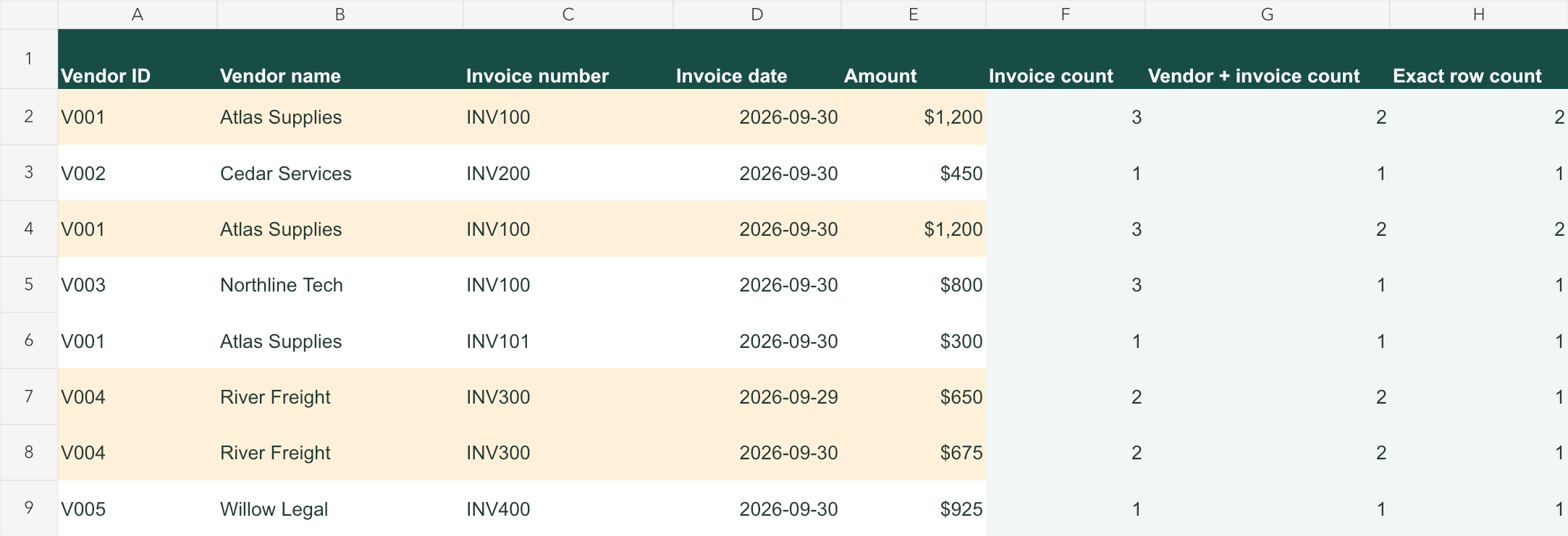
Illustrative data from the downloadable sample; this is an editorial diagram, not a hiData product screenshot.
Key Takeaways
- Use conditional formatting for a quick visual check without changing the source data.
- Use
COUNTIFfor one column andCOUNTIFSfor combinations such as vendor ID and invoice number. - Finding all members of a duplicate group differs from flagging only later occurrences.
- Use a helper column and filters to extract records; use
FILTERin supported Excel versions. - Review suspected duplicates before removal, especially when dates, amounts, or payment status differ.
Which Method Should You Use to Find Duplicates in Excel?
Choose the method based on the result you need. Highlighting is enough for a short list. A helper column is better when you need a filterable review queue. Multiple fields require a combined rule, while repeated imports benefit from saved transformation steps.
| Your task | Method | Result |
|---|---|---|
| See repeated values quickly | Conditional formatting | Highlighted cells |
| Count or label repeats in one column | COUNTIF | A count or review flag |
| Check a combination of fields | COUNTIFS | Matching record groups |
| Find values shared by two lists | COUNTIF against the other list | Cross-list matches |
| Copy repeated records to another area | Helper column + filter, or FILTER | A separate duplicate review list |
| Repeat the check on new exports | Power Query | A refreshable query output |
The examples below use an illustrative invoice table in A1:E9. The letters identify the Excel columns: A is Vendor ID, B is Vendor name, C is Invoice number, D is Invoice date, and E is Amount. Keep identifiers as text if leading zeros are meaningful.
| Excel row | A: Vendor ID | B: Vendor name | C: Invoice number | D: Invoice date | E: Amount |
|---|---|---|---|---|---|
| 2 | V001 | Atlas Supplies | INV100 | 2026-09-30 | $1,200 |
| 3 | V002 | Cedar Services | INV200 | 2026-09-30 | $450 |
| 4 | V001 | Atlas Supplies | INV100 | 2026-09-30 | $1,200 |
| 5 | V003 | Northline Tech | INV100 | 2026-09-30 | $800 |
| 6 | V001 | Atlas Supplies | INV101 | 2026-09-30 | $300 |
| 7 | V004 | River Freight | INV300 | 2026-09-29 | $650 |
| 8 | V004 | River Freight | INV300 | 2026-09-30 | $675 |
| 9 | V005 | Willow Legal | INV400 | 2026-09-30 | $925 |
Illustrative data, not customer records. INV100 and INV300 repeat; their business meaning still requires review.
Download the Excel sample with formula columns or the raw CSV to follow the examples. They contain demonstration data, not customer records. Both put the headers in row 1.
Method 1: Highlight Duplicate Values with Conditional Formatting
Use this method when you want to see where values repeat before changing anything. For the sample invoice list, check the invoice-number column first.
- Select
C2:C9, excluding the header. - Open Home > Conditional Formatting.
- Select Highlight Cells Rules > Duplicate Values.
- Keep Duplicate selected, choose a format, and click OK.
Excel highlights every occurrence of a repeated number. In this example, INV100 is highlighted in rows 2, 4, and 5; INV300 is highlighted in rows 7 and 8. It does not highlight only the second occurrence. This matches Microsoft's duplicate-highlighting workflow.
Watch the selected range: applying this built-in rule to several columns checks repeated cell values throughout that selection. It does not establish that whole rows are identical. Use a formula-based rule when a duplicate depends on two or more fields.
Method 2: Find Duplicates in One Column with COUNTIF
A helper column gives you a count you can sort, filter, and keep with the record. Add Invoice count in F1, enter this formula in F2, and fill it down to F9:
=IF(C2="","",COUNTIF($C$2:$C$9,C2))
The dollar signs keep the search range fixed as you copy the formula. C2 changes to C3, C4, and so on, so each row is checked against the full invoice list. A blank invoice number stays blank rather than becoming a misleading duplicate count. Microsoft's COUNTIF guide explains the function and its matching rules.
The expected counts, from F2 to F9, are 3, 1, 3, 3, 1, 2, 2, 1. Filter F for values greater than 1 to review every member of each repeated-number group.
Flag Only the Second and Later Occurrences
If you want to leave the first occurrence unflagged, use an expanding range instead. Put this formula in a different empty column and fill down:
=IF(C2="","",IF(COUNTIF($C$2:C2,C2)>1,"Later occurrence","First occurrence"))
The beginning of the range stays at C2, while the end moves with the row. INV100 is flagged in rows 4 and 5; INV300 is flagged in row 8. This identifies later occurrences in the current row order. It does not tell you which invoice is valid or which record should be retained.
Method 3: Find Duplicates Across Multiple Columns with COUNTIFS
Invoice numbers can repeat across vendors. To find duplicate candidates based on Vendor ID + Invoice number, add Vendor-invoice count in G1 and enter this in G2:
=IF(OR(A2="",C2=""),"",COUNTIFS($A$2:$A$9,A2,$C$2:$C$9,C2))
Fill down to G9. The expected counts are 2, 1, 2, 1, 1, 2, 2, 1. Northline Tech's INV100 now has a count of 1 because it belongs to a different vendor. Atlas Supplies INV100 and River Freight INV300 remain review candidates.
COUNTIFS counts rows where all supplied criteria match. If records span several entities or currencies, add those fields to the rule where they are part of the invoice identity. Leave missing-key rows in a separate data-quality queue.
Highlight the Entire Matching Row
Select A2:E9, then open Home > Conditional Formatting > New Rule > Use a formula to determine which cells to format. Enter:
=AND($A2<>"",$C2<>"",COUNTIFS($A$2:$A$9,$A2,$C$2:$C$9,$C2)>1)
Choose a fill and confirm that Applies to is =$A$2:$E$9. The formula uses the first data row, row 2. Locked column letters keep the rule on the ID and invoice fields, while unlocked row numbers let it move down the table.
Find Fully Repeated Rows
To check whether all five source fields match, use a count in H2 and copy it down:
=COUNTIFS($A$2:$A$9,A2,$B$2:$B$9,B2,$C$2:$C$9,C2,$D$2:$D$9,D2,$E$2:$E$9,E2)
Only rows 2 and 4 have counts above 1. The two River Freight records share a vendor and invoice number, but differ in date and amount. They are a key conflict rather than fully repeated rows. A full-row check should use every field that matters to your record definition.
Method 4: Find Matches Between Two Columns or Worksheets
Comparing lists is a different task from finding repeats within one list. Suppose one list is in A2:A100 and a second list is in B2:B100 on a separate comparison sheet. To flag values from A that appear anywhere in B, enter this in C2 and fill down:
=IF(A2="","",IF(COUNTIF($B$2:$B$100,A2)>0,"Found in list B","Missing from list B"))
Use this for invoice references, customer IDs, or transaction lists arranged in different orders. A formula such as =A2=B2 only compares the same row; it can show a mismatch even when the value exists elsewhere in the other column.
For another worksheet, change the search range to a sheet reference:
=IF(C2="","",IF(COUNTIF('Payment export'!$A$2:$A$100,C2)>0,"Reference found","Reference missing"))
This checks whether an invoice reference appears in a payment export. It does not prove that the invoice was paid in full: amount, currency, vendor, and payment allocation may need separate checks. Cross-file balance checks belong in an accounts payable reconciliation workflow.
Method 5: Extract Duplicate Records into a Review List
Once you have flagged records, move the review into a separate view. This keeps the source intact and gives a reviewer a manageable list instead of an entire workbook.
Use a Helper Column and Filter
- Keep the Vendor-invoice count formula in G2:G9.
- Select the complete table, including the helper column.
- Choose Data > Filter.
- Filter the count column for values greater than 1.
- Copy only the visible data rows into a new review sheet.
This returns rows 2, 4, 7, and 8. Keep their source row references or original record IDs with the copied data, and label the review sheet with the source filename and extraction date.
Use FILTER in Microsoft 365, Excel 2021, or Excel 2024
In an empty area outside an Excel Table, enter:
=FILTER(A2:E9,G2:G9>1,"No duplicate candidates")
The FILTER function returns every source row where G is above 1. Leave enough empty cells for the results to spill. In older versions without FILTER, use the helper-column method.
For a list of repeated invoice numbers with each number shown once, use:
=UNIQUE(FILTER(C2:C9,F2:F9>1,"No duplicate invoice numbers"))
This returns INV100 and INV300 for the sample. UNIQUE on its own returns a distinct list that also includes values occurring once. FILTER selects the repeated numbers first; UNIQUE then collapses the repeated results. This formula uses invoice numbers alone, so it is not a vendor-specific duplicate determination.
Method 6: Find Duplicates in Recurring Imports with Power Query
Power Query is useful when the same check must be repeated on new monthly exports. Start with a review query that keeps candidates rather than removing them from the source.
- In Excel for Windows, select the source table and choose Data > From Table/Range.
- In Power Query, confirm the column types and clean any agreed ID formatting.
- Select the fields that define the record, such as Vendor ID and Invoice number.
- Choose Home > Keep Rows > Keep Duplicates.
- Choose Close & Load and place the review output on a new worksheet.
Refresh the query after the source table changes. Menu availability varies by Excel platform and version, so these steps describe the Windows desktop route.
Power Query is case-sensitive. Apply an agreed uppercase or lowercase transformation if letter case should not create different IDs. Microsoft's duplicate-handling documentation also warns that Remove Duplicates does not guarantee which occurrence is retained. Define a retention rule explicitly if you need the newest, approved, or most complete record.
How to Remove Duplicates After Reviewing Them
After approving a removal rule, create a working copy, select the full source table, and choose Data > Remove Duplicates. Confirm the header setting and select the columns used to identify a duplicate.
Selecting every source column removes fully repeated records. Selecting Vendor ID and Invoice number collapses every repeated key combination, even when dates or amounts differ. The worksheet tool keeps the first occurrence in the selected data order, so decide which record belongs first before using it.
For the sample, removing one confirmed extra copy of the fully repeated Atlas Supplies row changes the row count from 8 to 7 and the amount total from $6,200 to $5,000. The $1,200 change is explained by that one copy. Keep both River Freight records until their $25 amount difference and date difference are resolved.
Worked Example: Review Duplicate Invoice Candidates
A finance review benefits from separating a repeated value, a repeated key, and a fully repeated record. Each check produces a different population in the same eight-row file.
| Check | Flagged source rows | What to investigate |
|---|---|---|
| Invoice number only | 2, 4, 5, 7, 8 | INV100 belongs to two vendors; the number alone is insufficient. |
| Vendor ID + invoice number | 2, 4, 7, 8 | Two candidate groups: Atlas Supplies INV100 and River Freight INV300. |
| All five source fields | 2, 4 | One fully repeated pair; verify whether it came from a repeated import. |
Four flagged rows do not mean four unnecessary invoices. They are the members of two candidate groups. Even a fully repeated pair is evidence for investigation, not proof of a duplicate payment. Check the source invoice and transaction history before changing the ledger.
Document each group's reason, reviewer, and action. Where an invoice needs approval or a payment hold, continue through the invoice processing workflow instead of treating a spreadsheet flag as payment authorization.
Use hiData to Review Duplicates in Uploaded Excel Files
Manual formulas work well when the file is already structured. When several exports contain inconsistent headers, mixed dates, or vendor names written different ways, hiData AI Sheets offers a natural-language workflow for cleaning, classifying, analyzing, and visualizing uploaded data.
Start with a focused request: identify the available keys and missing fields, agree on normalization rules, then ask for candidate groups. Keep the original data and compare the results with the Excel counts before changing any records.
Review this uploaded invoice file without deleting rows.
Use Vendor ID + Invoice number as the candidate duplicate key.
List missing keys separately. Preserve the original fields.
Separate fully repeated rows from matching keys with different dates or amounts.
For each group, show the source rows, count, differences, and a reason to review.
Summarize flagged rows and candidate groups separately.
Do not assume a repeated invoice was paid twice.
After reviewing the table, request a summary by vendor or a chart showing candidate groups and conflicting amounts. The value is a clearer review output from the files you provide. Final duplicate decisions and accounting adjustments remain with the person responsible for the records.
Why Is Excel Missing Duplicates or Flagging the Wrong Records?
Spaces and Inconsistent IDs
Leading or trailing spaces can stop matching values from being counted together. Use a helper column such as =TRIM(C2) for an agreed cleanup rule. For common nonbreaking spaces from copied text, try =TRIM(SUBSTITUTE(C2,CHAR(160)," ")). Check the cleaned results before using them as keys; TRIM can also collapse repeated internal spaces. For other preparation steps, see our Excel data cleaning guide.
Text, Numbers, and Leading Zeros
An ID such as 00125 may be different from 125. Preserve the identifier as text when leading zeros matter. If Excel already converted the original value to a number, formatting it later does not establish which original identifier was correct.
Case-Sensitive Records
COUNTIF and COUNTIFS do not distinguish uppercase and lowercase text. If case is meaningful, use a case-sensitive comparison. For one invoice column, an alternative count is =SUMPRODUCT(--EXACT($C$2:$C$9,C2)). Apply the same case rule throughout the workflow, including Power Query.
Wildcard Characters in IDs
COUNTIF and COUNTIFS treat * and ? as wildcards in criteria. If those characters are literal parts of your IDs, escape them in the criterion or use an exact-text comparison. The sample IDs in this guide contain no wildcard characters.
Ranges and Spill Errors
Extend fixed ranges when new rows are added, or use Excel Tables with structured references. A FILTER result needs an empty output area outside the Table. If you see #SPILL!, check for occupied or merged cells. If the duplicate count is wrong, first confirm that the formula includes the whole source population.
Frequently Asked Questions
How do I find duplicates in Excel without deleting them?
Use Conditional Formatting > Highlight Cells Rules > Duplicate Values. For a filterable result, add a COUNTIF helper column and filter for counts above 1. Both approaches leave the source records in place.
What is the formula to find duplicates in Excel?
For one column, use =COUNTIF($A$2:$A$100,A2)>1. It flags every occurrence of a repeated value. Use an expanding range, =COUNTIF($A$2:A2,A2)>1, to flag only later occurrences. Exclude blank IDs if they are not valid records.
How do I find duplicates in Excel with multiple columns?
Use COUNTIFS with one range-and-criterion pair for each key field. For example, count rows where both Vendor ID and Invoice number match. Check all relevant source fields when you need fully repeated rows rather than repeated keys.
Can UNIQUE extract duplicate values?
UNIQUE alone produces a distinct list. To list repeated values once, first filter values whose counts are above 1, then apply UNIQUE to that result. To extract complete repeated records, filter the source rows using the appropriate duplicate count.
Can AI find duplicate invoices in Excel?
AI can assist with uploaded-file preparation and candidate review when the identifying fields and matching rules are supplied. Review source invoices, credits, revisions, and payment history before deciding a candidate is an error or duplicate payment.
Turn Duplicate Candidates into a Clear Review List
Upload your Excel or CSV export to hiData, define the matching fields, and ask for a table of repeated records and conflicting values. Review the source rows, then turn the findings into a summary or chart for your team.