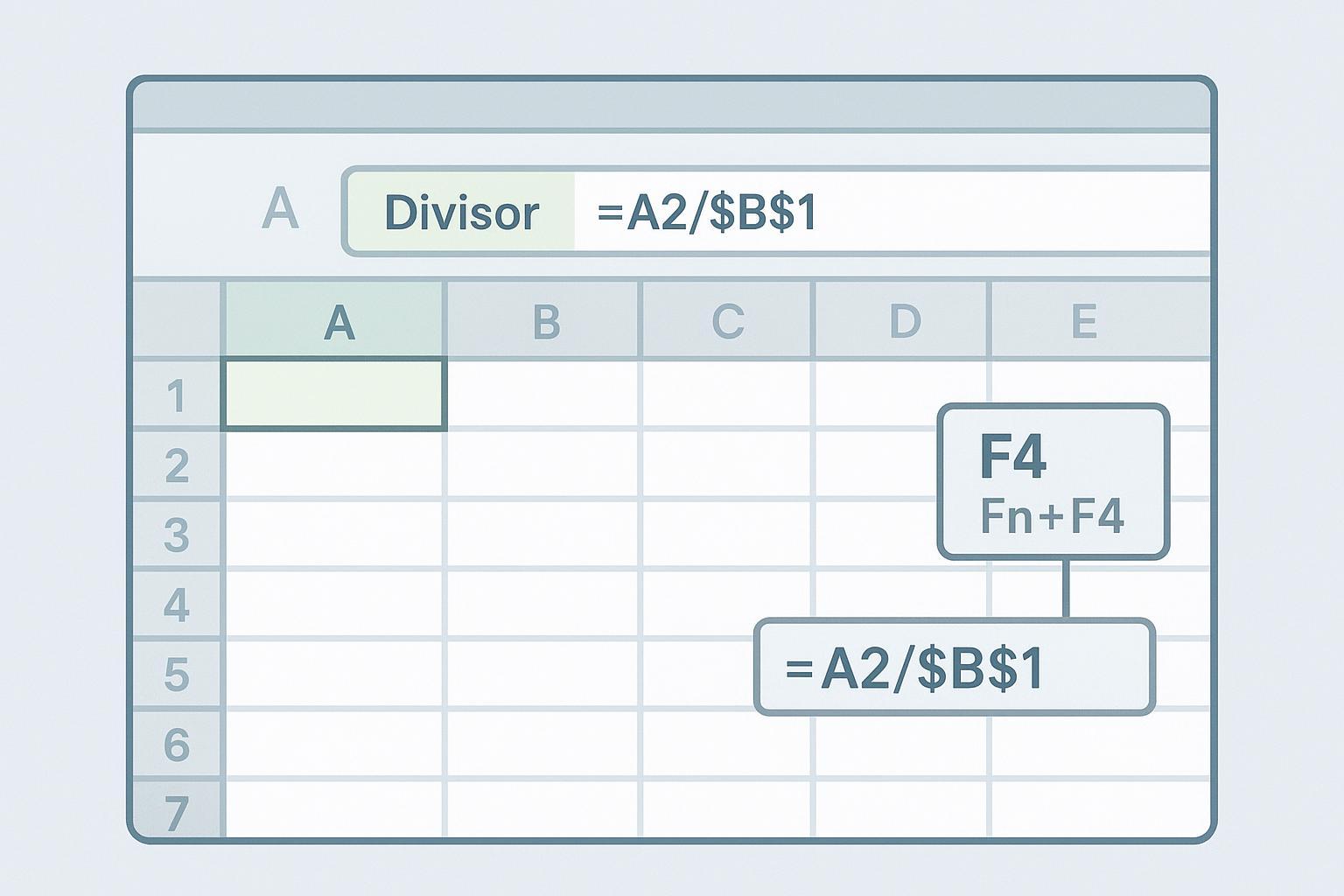
If you fill a formula down a column and your divisor keeps “sliding” to the next row, you’re seeing relative references at work. The fix is simple: turn the divisor (for example, B1) into an absolute reference ($B$1) so it never moves when you copy or fill.
Time: 2–5 minutes (Beginner) • What you’ll learn: the F4 toggle, absolute vs mixed references, quick fill methods, and fast checks to avoid #DIV/0!.
Key takeaways
To lock a divisor, convert B1 to $B$1; use =A2/$B$1 and then fill.
Press F4 (Windows) or Fn+F4 / Command+T (Mac) with the cursor on a reference to cycle A1 → $A$1 → A$1 → $A1 → A1, per Microsoft’s guidance in the article on switching between relative, absolute, and mixed references.
Efficient fills: drag the fill handle or select the range and press Ctrl+D (Windows) / Command+D (Mac). See Microsoft’s keyboard shortcuts in Excel.
Quick fixes: ensure the divisor isn’t blank/zero (avoid #DIV/0!); if F4 “does nothing,” place the caret on the cell reference and check Mac Fn‑key settings.
Absolute, relative, and mixed references (and the F4 cycle)
Before we lock a cell, here’s the idea:
Relative: A1 — row and column both change when filled or copied.
Absolute: $A$1 — row and column stay fixed.
Mixed: $A1 (column fixed) or A$1 (row fixed).
While editing a formula, place the caret on the reference and press:
Windows: F4
Mac: Fn+F4 (or Command+T, depending on keyboard settings)
Each press cycles A1 → $A$1 → A$1 → $A1 → A1. Microsoft documents this in Switch between relative, absolute, and mixed references.
Step-by-step: lock a divisor like $B$1 and fill down
Goal: Divide a list in A2:A7 by the fixed divisor in B1.
Enter the setup
A2:A7: your numbers (e.g., 10, 12, 16, 20, 25, 30)
B1: divisor (e.g., 2). Make sure it isn’t blank or zero.
Write the first formula in C2
Type =A2/B1
Lock the divisor
With the cursor on B1 in the formula, press F4 (Windows) or Fn+F4 / Command+T (Mac) → it becomes $B$1
Your formula should read =A2/$B$1
Confirm and fill
Press Enter to calculate C2
Fill to C7 by dragging the fill handle, or select C2:C7 and press Ctrl+D (Windows) / Command+D (Mac). See Microsoft’s guidance to fill a formula down into adjacent cells.
Inspect a couple of filled cells
C3 should read =A3/$B$1; C4 should read =A4/$B$1 (A‑part changes; $B$1 stays fixed)
Mini example (ASCII view)
   A      B      C
1         2     (Divisor)
2  10           =A2/$B$1 → 5
3  12           =A3/$B$1 → 6
4  16           =A4/$B$1 → 8
5  20           =A5/$B$1 → 10
6  25           =A6/$B$1 → 12.5
7  30           =A7/$B$1 → 15
Tips
For long ranges, select C2, then Shift+click C1000 (for example), and press Ctrl+D / Command+D to fill without dragging.
Many users double‑click the fill handle to auto‑fill down adjacent data. If it doesn’t behave as expected, use drag or the Fill Down shortcut instead. Microsoft’s official docs emphasize drag and fill commands.
Lock cell reference in Excel when filling right (mixed references)
When you fill across a row, you may want a column or a row to stay put. Use mixed references: $B1 locks the column B; B$1 locks row 1. For a tiny 2‑D multiplier table:
     A     B     C     D
1         1.1   1.2   1.3   (column factors)
2  10
3  20
4  30
In B2, enter =$A2*B$1 and fill right and down. Why it works:
$A2 locks column A for the row factors (A2, A3, A4...)
B$1 locks row 1 for the column factors (B1, C1, D1)
Microsoft explains how references transform when you copy or fill in Switch between relative, absolute, and mixed references.
Locking ranges inside common functions
You’ll often want fixed ranges inside functions so they don’t drift when you copy formulas:
COUNTIF: =COUNTIF($B$2:$B$11, "CO")
SUMIFS: =SUMIFS($D$2:$D$100, $A$2:$A$100, G2, $B$2:$B$100, H2)
XLOOKUP (Microsoft 365, Excel 2021 or later): =XLOOKUP(F2, $A$2:$A$100, $C$2:$C$100). XLOOKUP is unavailable in Excel 2016 and Excel 2019; use an appropriate supported lookup in those versions.
Technique: Put the caret in each range token and press F4 to set absolute or mixed references as needed. See Microsoft’s Overview of formulas and the reference toggle article.
Troubleshooting matrix (quick fixes)
Symptom | Likely cause | Fast fix |
|---|---|---|
#DIV/0! appears | B1 is blank or zero | Ensure B1 contains a nonzero number; negative divisors are valid. For a blank output when B1 is zero, use =IF($B$1=0, "", A2/$B$1). To catch other errors as well, use =IFERROR(A2/$B$1, "") and review the affected inputs. See Microsoft’s guide to correct a #DIV/0! error. |
F4 doesn’t toggle | Caret not on a reference; Mac needs Fn+F4 or Command+T | Click on the B1 part in the formula and press F4; on Mac, use Fn+F4 or Command+T. If function keys trigger hardware controls, adjust macOS settings (Apple menu > System Settings > Keyboard) or hold Fn. |
Results change when filling right | Wrong dimension locked | Use $B1 to lock the column only, or B$1 to lock the row only. |
Structured table behaves oddly | Structured references auto‑adjust differently | Review Microsoft’s article on structured references with Excel tables. Lock parts as needed or convert to ranges for this step. |
#REF! after edits | Deleted the referenced cell, row, or column | Avoid deleting the referenced cell, row, or column; consider naming the input Divisor and protecting a Settings sheet. Moving a referenced cell normally updates the formula reference automatically. |
Verify your work (audit in 30–60 seconds)
Spot‑check: Click a few filled cells. You should see =A3/$B$1, =A4/$B$1, and so on. The A‑part increments; $B$1 doesn’t.
Show Formulas: Press Ctrl+` (grave accent) to show formulas across the sheet and confirm the pattern visually. Microsoft explains this in Show and print formulas.
Evaluate Formula: Formulas tab > Formula Auditing > Evaluate Formula to step through a sample cell. See Microsoft’s guidance on displaying relationships between formulas and cells.
Excel for the web: Some shortcuts differ in the browser. If F4 doesn’t toggle references online, edit on desktop or add dollar signs manually.
Named range alternative (readability boost)
If B1 is a long‑lived constant, name it Divisor and use =A2/Divisor. It reads better and is harder to break.
Steps (about 1–2 minutes)
Select B1 and click in the Name box (left of the formula bar). Type Divisor and press Enter.
In C2, use =A2/Divisor and fill down.
Verify in Formulas > Name Manager that Divisor points to $B$1. Microsoft covers the basics in Define and use names in formulas and Use the Name Manager.
References and further reading (Microsoft‑first)
Next steps
Prefer to analyze exported data and build charts through plain English? Upload an Excel or CSV file to hiData AI Sheets, describe the analysis, and review the results against the source. This is a separate file-based workspace; use Excel itself for the reference-locking steps in this guide.
Practice a few fills with =A2/$B$1 and watch how the A‑part travels while the divisor stays put. Once that clicks, mixed references for 2‑D tables will feel natural—what will you lock next?