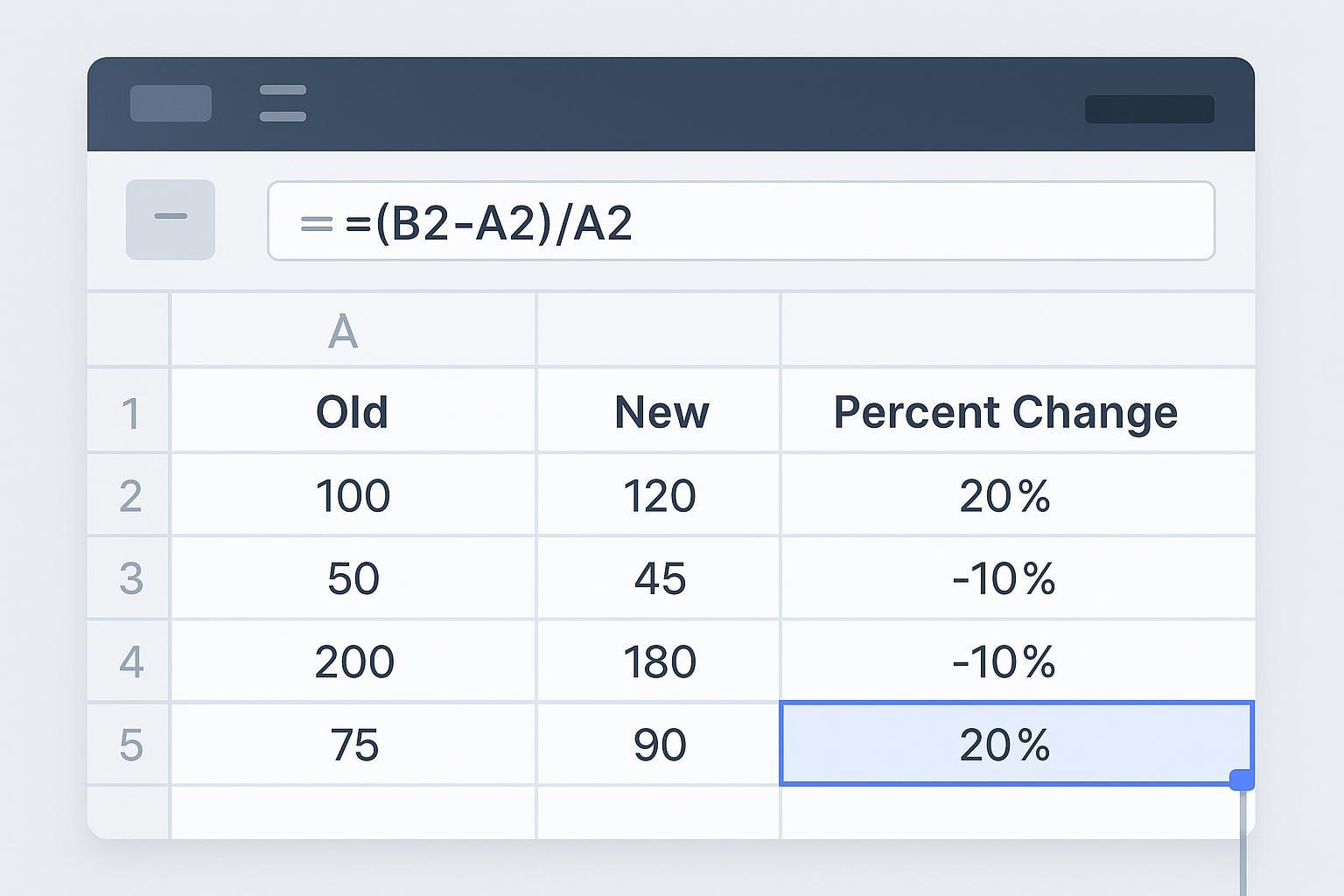
If you work in spreadsheets long enough, you’ll need percent change—how much something went up or down compared to a prior value. For a positive starting value, there’s one standard formula, plus a few formatting and error-proofing steps that make results crystal clear.
Key takeaways
For a positive old value, the standard Excel percent change formula is =(New - Old) / Old; equivalent: =New/Old - 1. A zero or negative baseline needs separate treatment.
Format the result as Percentage; don’t multiply by 100 inside the formula.
Use relative references for row-by-row pairs; use $ locks when many rows share one fixed baseline.
Guard against #DIV/0! when Old is 0 and fix text-stored numbers before calculating.
Control decimals for readability; optionally show negative percentages in red with a custom format.
How to calculate percent change in Excel (the canonical formula)
The core idea is “difference divided by the old value.” The increase/decrease interpretation below assumes Old is positive. If Old is zero, the percentage change is undefined; if it is negative or the values cross zero, report the old and new amounts and explain your chosen convention rather than treating the result as an ordinary growth rate. In Excel, reference cells instead of typing numbers:
=(B2 - A2) / A2
That’s equivalent to:
=B2 / A2 - 1
With A2 greater than zero, if B2 > A2, the result is positive (increase); if B2 < A2, it’s negative (decrease). After you apply Percentage format, 0.25 displays as 25% and -0.08 as -8%. According to Microsoft’s documentation on percentage behavior, the format multiplies the underlying decimal by 100 for display; there’s no need to multiply by 100 in your formula. See the guidance in the article on format numbers as percentages in Excel (Microsoft Support).
Mini example (values you can try):
A2 (Old) = 120
B2 (New) = 128
C2 (Percent change) formula:
=(B2-A2)/A2→ 0.066666... → after Percentage format → 6.67%
Format the result as a percentage
Display matters. Get the math first, then format for readability.
Ribbon: Home → Number group → Percent Style (%)
Shortcuts: Ctrl+Shift+% on Windows and Mac (Control+Shift+5 on a US keyboard). This applies percentage format with no decimal places; adjust decimals as needed.
More control: Ctrl+1 (Cmd+1 on Mac) → Number → Percentage → set Decimal places
Tip: Make sure your formula returns a decimal ratio (e.g., 0.25) before you apply Percentage; for example, an underlying value of 25 displays as 2500%. Microsoft explains these display rules in Format numbers as percentages in Excel.
Common mistake to avoid: Don’t write =((B2-A2)/A2)*100 and then format as Percentage—that “double-%” will show 100× larger results.
Fill reliably with relative vs. absolute references
You’ll often need percent change for many rows or across months. Choose the right reference style before you drag the fill handle.
Pairwise rows (typical case): Old in A, New in B, result in C. Use relative references and fill down.
C2: =(B2-A2)/A2 → fill down
One shared baseline for many rows: put a positive baseline, such as 100, in a separate input cell F1, and put each new value in column B. Lock the baseline reference in both parts of the formula so it won’t shift.
C2: =(B2 - $F$1) / $F$1 → fill down
Tip: Press F4 while your cursor is on a cell reference to cycle A1 → $A$1 → A$1 → $A1 → A1. Microsoft’s reference guide covers how relative and absolute references behave when you copy or fill formulas; see Switch between relative and absolute references (Microsoft Support).
Prevent errors and clean data
Two issues cause most headaches: zero denominators and numbers stored as text.
Divide-by-zero and other errors
Show N/A when Old is 0:
=IF(A2=0, "N/A", (B2-A2)/A2)
Catch any error and show blank. Keep an error or undefined ratio distinct from a genuine 0% change, and review the inputs because IFERROR can also hide errors other than division by zero:
=IFERROR((B2-A2)/A2, "")
Microsoft documents both the #DIV/0! condition and the IFERROR function; see How to correct a #DIV/0! error and IFERROR function (Microsoft Support).
Fix numbers stored as text
Quick convert with VALUE, then paste values:
=VALUE(A2)
Or use Data → Text to Columns → Next → Next → Column data format = General → Finish to force Excel to recognize numbers. Microsoft outlines both approaches in Convert numbers stored as text to numbers in Excel and the Text to Columns wizard.
Data hygiene reminders: trim stray spaces, keep date keys consistent, and check for blanks before you judge performance swings.
Variations you’ll use often
Month-over-month (adjacent periods):
=(Current - Previous) / Previous ⟶ e.g., =(C2 - B2)/B2 then fill right
Year-over-year (same month vs prior year):
=(ThisYear - LastYear) / LastYear ⟶ e.g., =(B14 - B2)/B2
PivotTables: Add your value field twice, then set the second to Show Values As → % Difference From → Base field = Month (or your period) → Base item = (previous). Microsoft documents this workflow in Show different calculations in PivotTable value fields (Microsoft Support).
Optional presentation tweak: show negatives in red
Use a custom number format to color decreases without changing the math:
0.00%;[Red]-0.00%
You can also use parentheses for negatives: 0.00%;[Red](0.00%). Microsoft explains custom format sections (positive;negative;zero;text) in the guidelines for customizing number formats.
Quick practice dataset (copy/paste)
Copy the Old and New columns into A1:B5, including the headers. Enter the formula shown for each row in column C; the arrow and displayed answer are explanations, not part of the formula. Then format C as Percentage with two decimals.
Old | New | % Change (formula in C) |
|---|---|---|
120 | 128 | =(B2-A2)/A2 → 6.67% |
200 | 160 | =(B3-A3)/A3 → -20.00% |
0 | 50 | =IF(A4=0,"N/A",(B4-A4)/A4) → N/A |
75 | 75 | =(B5-A5)/A5 → 0.00% |
Charting tip: Filter out rows whose result is the text "N/A" before creating a Line or Column chart from the remaining valid comparisons. Text "N/A" is a display label, not Excel’s #N/A error value, and must not be treated as zero growth. Set chart-label decimal places to match the precision you intend to show.
Optional automation
For a file-based alternative, upload an Excel or CSV export to hiData AI Sheets and ask, “Calculate month-over-month percent change for Sales by product. Flag zero, negative, or missing prior-period values for review.” Verify the period matching and calculations against your source file. See the FAQ for current file and export details.
Quick checklist (next steps)
For a positive baseline, enter
=(New-Old)/Old; flag zero, negative, or missing baseline values for review.Apply Percentage format and set decimals; don’t multiply by 100.
Choose reference style (relative vs $-locked) before you fill.
Add
IF/IFERRORguards; convert any text-stored numbers.Sanity-check outliers and consider coloring negatives for clarity.
That gives you a consistent percent change workflow for positive baselines, with explicit handling of exceptions before the results reach a report.