
The best AI tool for Excel depends on the job. Choose Microsoft Copilot, Claude for Excel, ChatGPT for Excel, GPT for Work, or Deckary when the workbook must remain the working surface. Choose hiData AI Sheets when the work starts with exported files and needs to end in reviewed analysis and a polished dashboard. Julius AI suits code-backed exploration, Better Analyst suits broader report workflows, and GPTExcel or Numerous.ai suit narrower formula and in-cell tasks.
No single tool is the best fit for every spreadsheet workflow. An in-workbook agent, a file-based analysis workspace, and a formula helper solve different problems. This guide compares ten current options by where they work, what they produce, and where each one fits less naturally.
Review note: This comparison was updated on September 28, 2026 from current vendor documentation. It is not presented as a laboratory benchmark or a claim that every tool was tested under identical conditions. Product features and pricing can change, so confirm critical requirements with each vendor before purchasing.
Key takeaways
- There is no single best AI tool for every Excel workflow. Start with the job: editing a live workbook, cleaning exported files, exploring data, generating formulas, or building a recurring team process.
- For native workbook editing, compare Microsoft Copilot, Claude for Excel, ChatGPT for Excel, GPT for Work, and Deckary. The important differences are multi-sheet reasoning, reviewable edits, bulk processing, model building, and licensing.
- For file-first analysis and dashboards, hiData AI Sheets and Julius AI are relevant starting points. The file-to-insight workflow should be evaluated against your own source files, with particular attention to analysis quality and dashboard clarity.
- For narrow formula or bulk-cell tasks, use a specialist such as GPTExcel or Numerous.ai. A focused tool can be faster than adopting a larger platform when the need is limited.
- Rows is an alternative when the team is willing to replace Excel with a collaborative web spreadsheet. It is useful, but it should not be evaluated as if it were an Excel add-in.
- Do not judge a tool only by its first answer. Test whether it preserves source data, exposes formulas or transformation steps, handles changed inputs, and produces results another person can verify.
Best Excel AI tools at a glance
| Tool | Best for | Where it works | Main output | Main limitation |
|---|---|---|---|---|
| hiData AI Sheets | Cleaning, classifying, processing, and visualizing uploaded spreadsheet data | Web workspace with Excel or CSV files | Clean tables, analysis, charts, and visual insights | Not a live two-way Excel or database connection |
| Microsoft Copilot in Excel | Native assistance in an existing Microsoft workbook | Inside Excel | Workbook edits, formulas, analysis, and visuals | Requires a compatible Microsoft setup; AI output still needs review |
| Claude for Excel | Understanding and auditing complex, multi-sheet workbooks | Excel add-in | Cell-referenced explanations, workbook edits, formulas, and models | Availability and usage depend on the Claude plan and organizational approval |
| ChatGPT for Excel | Building, updating, and explaining workbooks through a sidebar | Excel add-in | Workbook changes, explanations, scenarios, and analysis | Availability and usage depend on plan and workspace settings |
| GPT for Work | Bulk AI processing and repetitive row-by-row work inside Excel | Excel add-in | In-place formulas, classifications, enrichment, cleaning, and charts | Usage and cost need monitoring on large runs |
| Deckary | Financial modeling, workbook audits, and structured Excel edits | Excel add-in | Linked formulas, models, audit findings, and output sheets | More specialized toward finance and consulting workflows |
| Julius AI | Exploratory analysis, modeling, and reports from uploaded data | Web app and connected sources | Code-backed analysis, charts, reports, and exports | Less suitable when the workbook itself must remain the primary working surface |
| Better Analyst | End-to-end analytics, dashboards, and recurring workflows | Web analytics workspace | Analysis, dashboards, reports, spreadsheets, and automations | Broader platform than a lightweight Excel formula helper |
| GPTExcel | Formula generation, chart help, data cleaning, and spreadsheet chat | Conversational web app | Formulas, charts, pivots, cleaned data, and explanations | Some workflows require moving between the web app and the workbook |
| Numerous.ai | Bulk text classification, extraction, and generation in cells | Excel and Google Sheets add-on | AI-generated or normalized cell values | Best for text-heavy row operations, not full financial or statistical analysis |
How to choose an AI tool for Excel
Start with the place where the work must happen.
- Stay inside the workbook: compare Microsoft Copilot, Claude for Excel, ChatGPT for Excel, GPT for Work, and Deckary.
- Upload an export and turn it into analysis: choose hiData AI Sheets or Julius AI.
- Run the same AI instruction down many rows: compare GPT for Work and Numerous.ai.
- Build or audit a financial model: compare Claude for Excel and Deckary.
- Generate or repair formulas: choose GPTExcel, or use the formula features inside Copilot, ChatGPT, or Better Analyst.
- Build dashboards from exported files: compare hiData AI Sheets, Julius AI, and Better Analyst, then check evidence visibility and export requirements.
- Replace Excel with a collaborative web spreadsheet: consider Rows as a separate-platform alternative.
Before choosing, run one representative file through a short acceptance test. Use real column names, a known total, at least one missing value, and one edge case. Check whether the tool preserves the workbook structure, shows enough evidence to verify the result, and produces an output your team can actually reuse.
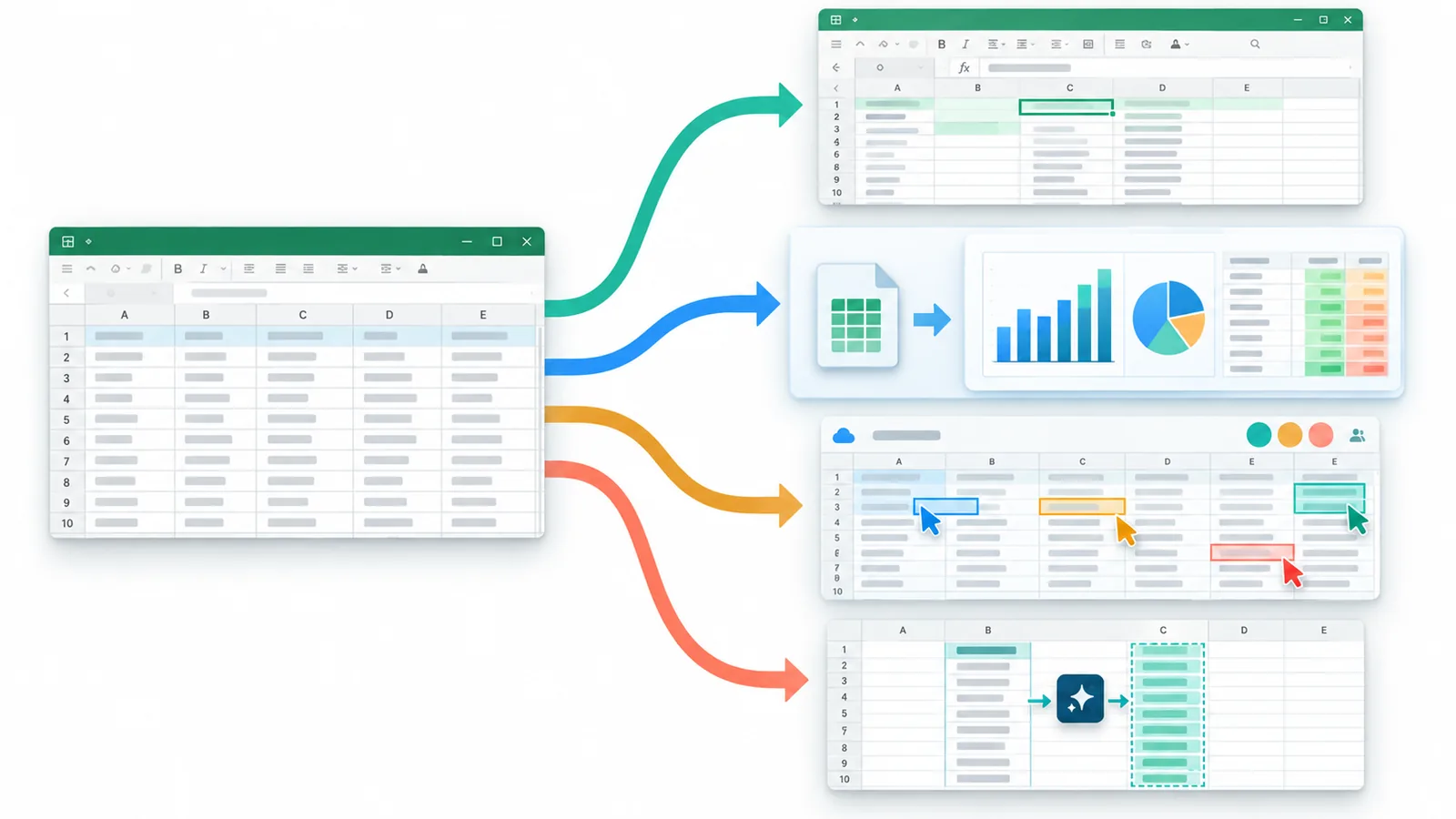
If your main problem is turning exported spreadsheets into clean tables, classifications, charts, and business insights, try AI Sheets with a non-sensitive sample file first.
How we evaluated the tools
This comparison uses six practical criteria instead of combining unrelated products into one score.
- Excel fit: Does the tool work inside Excel, accept Excel files, or replace the spreadsheet surface?
- Workflow depth: Does it only generate formulas, or can it also clean, transform, analyze, and visualize data?
- Output usability: Can the result return to a workbook, become a report, or support a presentation workflow?
- Traceability: Can a reviewer inspect formulas, code, source rows, or intermediate steps?
- Setup and governance: What account, add-in, connector, permission, or data-handling review is required?
- Product boundary: What does the product not do, and when should a different tool be used?
We deliberately removed old claims that could not be verified, including guaranteed accuracy, unsupported row limits, universal privacy or compliance claims, and statements that one tool solves a fixed percentage of spreadsheet problems.
1. hiData AI Sheets: best for file-first spreadsheet analysis
hiData AI Sheets is designed for users who start with an Excel or CSV export and need to clean, classify, process, analyze, and visualize the data through natural-language instructions. Its current product page emphasizes duplicate and missing-value detection, category standardization, field extraction, table restructuring, and chart generation.
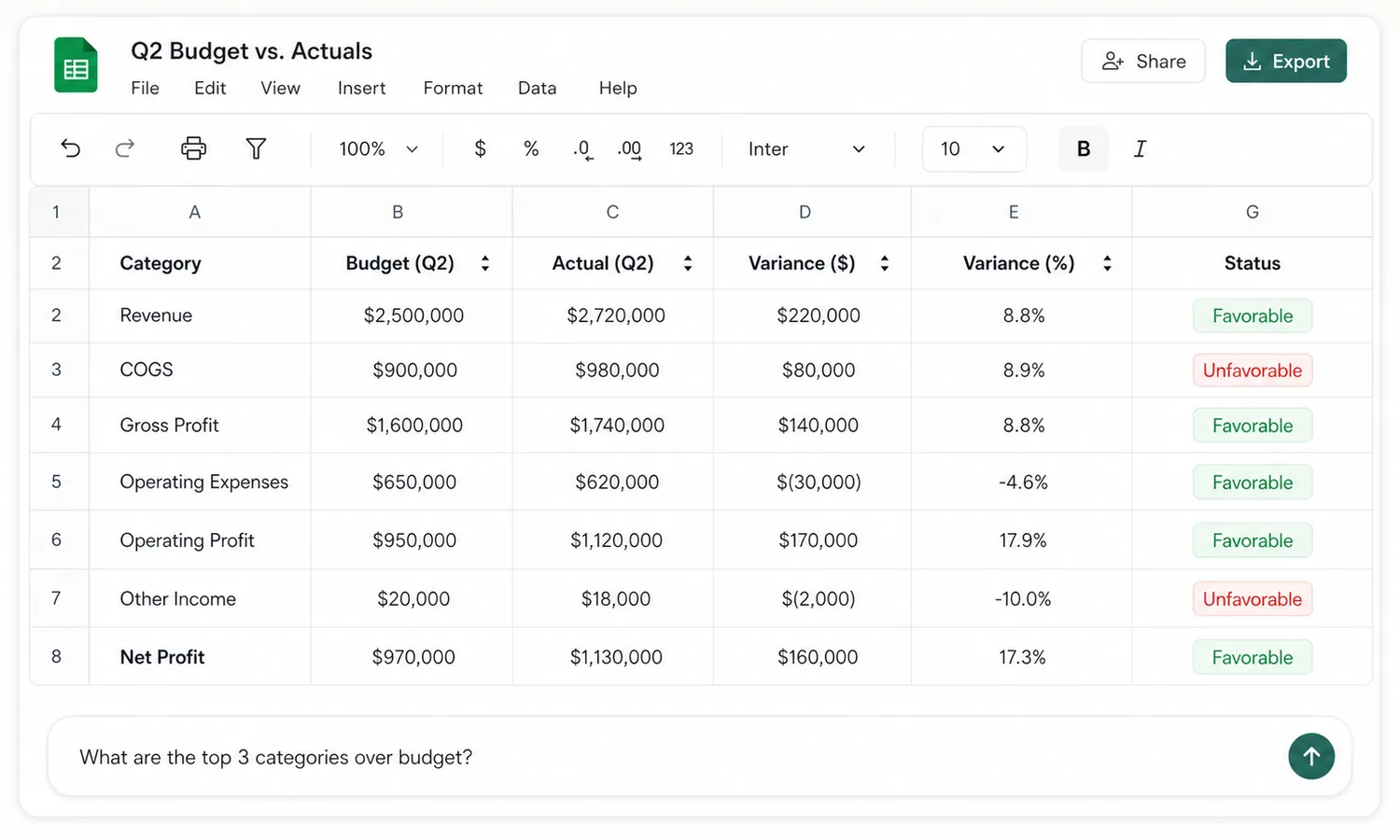
Choose it when: the workbook is an input to analysis rather than the permanent operating system. Typical examples include a retail sales export, a budget-versus-actual file, a supplier list, or a transaction table that needs normalization before review.
What it does well: it keeps the workflow focused on business questions rather than formula syntax. Its clearest product strength is therefore the path from messy exported data to reviewed analysis and presentation-ready dashboards in one workspace. That complements, rather than replaces, tools designed to edit formulas and models inside a live workbook.
Where it works less well: AI Sheets is not a native Excel add-in. The user uploads a file into a separate web workspace, so teams that must keep formulas, macros, named ranges, comments, permissions, and exact workbook formatting inside Excel need to test the round trip carefully. It should not be described as a live ERP, accounting-system, or database connector unless that capability is separately confirmed, and it is not a scheduled reporting pipeline. Dashboard metrics still need to be checked against the source fields and agreed business definitions.
Consider another option when: the main requirement is editing a complex live workbook in place, preserving VBA and workbook controls, or refreshing a governed model directly from connected systems. AI Sheets is most aligned with exported files that need cleaning, analysis, and a strong visual output.
Test it with: a sales, budget, supplier, or transaction export containing duplicates, missing values, inconsistent categories, and one independently verified total. Ask the tool to clean the file, explain the changes, answer one business question, and produce a chart.
For a narrower comparison with a general-purpose assistant, see hiData vs ChatGPT.
2. Microsoft Copilot in Excel: best for Microsoft-native work
Microsoft Copilot in Excel is the most direct option for teams that want AI inside the Microsoft 365 workbook experience. Microsoft documents natural-language analysis, formula assistance, summaries, trend and outlier identification, and workbook actions through Copilot experiences in Excel.
Choose it when: workbook fidelity, Microsoft permissions, and team adoption matter more than moving work into a separate analytics application.
What it does well: it can use the context of the workbook and support tasks where the result must remain in Excel. This makes it useful for budgets, trackers, scenario tables, and models already owned by a Microsoft-first team.
Where it works less well: “Copilot in Excel” is not one uniform experience. Microsoft separates direct data-analysis answers, workbook actions, and advanced Python analysis, so capabilities vary by mode and license. Microsoft says the direct-answer experience requires table or table-like structured ranges; unstructured data is not supported. It also says this experience does not modify the workbook and may insert static tables or images that are not refreshable. Teams building maintainable models should therefore confirm which Copilot workflow they are using.
Consider another option when: the source is mostly irregular exports, PDFs, screenshots, or poorly structured sheets that need substantial preparation before analysis. Copilot is also less aligned when the final deliverable is a polished cross-source dashboard rather than an Excel workbook. Reviewers should still verify formulas, Python logic, assumptions, and inserted outputs.
Test it with: an existing workbook whose formulas and formatting must remain intact. Ask Copilot to explain one formula, identify an outlier, add a calculated column, and create a chart without changing the source data.
3. Claude for Excel: best for understanding and auditing complex workbooks
Claude for Excel runs in an Excel sidebar and is designed to read, analyze, modify, and create workbooks while explaining its actions and linking explanations back to referenced cells. Anthropic emphasizes structure preservation, formula debugging, template population, and financial-model workflows.
Choose it when: you need to understand an inherited model, follow dependencies across multiple sheets, audit formulas, or make reviewable changes without flattening the workbook into static values.
What it does well: its strongest positioning is traceability inside complex workbooks. Cell references and explained changes are valuable when a reviewer needs to understand where a number came from.
Where it works less well: Claude for Excel is optimized for understanding and changing workbooks rather than serving as a complete BI or recurring dashboard platform. Availability, supported Excel surfaces, usage limits, and organizational approval can shape deployment. Large or complex files consume more context and usage, and the quality of an audit depends on whether Claude can see the relevant tabs, assumptions, links, and external dependencies. Anthropic separately advises that complex or mission-critical calculations should be verified with specialized software or manual methods.
Consider another option when: the main need is a lightweight formula generator, a scheduled reporting pipeline, or a polished dashboard from multiple operational exports. Claude is more aligned when workbook logic and traceable cell-level changes matter more than presentation-ready output.
Test it with: a multi-sheet model containing one hardcoded value, one broken formula, and one changed assumption. Ask Claude to trace the dependencies, explain the issue, and propose a correction without overwriting the source.
4. ChatGPT for Excel: best general-purpose workbook assistant
ChatGPT for Excel is a spreadsheet-native sidebar that can build, update, and explain workbooks using natural-language instructions. OpenAI documents support for tasks such as cleaning sheets, understanding formulas and assumptions, updating models, running scenarios, and summarizing changes.
Choose it when: you want a general assistant that can reason about the workbook and make changes while preserving the Excel working context.
What it does well: it combines workbook mechanics with broader explanation and analysis. It can be useful when the task crosses formulas, formatting, scenario analysis, narrative summaries, and research.
Where it works less well: spreadsheet chats are separate from the main ChatGPT history and do not use ChatGPT memory. OpenAI also states that VBA and macros may not be fully supported and that outputs can be incomplete or incorrect. Larger workbooks and multi-step edits can consume more agentic usage, while enterprise access can depend on administrator deployment, permissions, and available credits. Broad workbook changes therefore benefit from a clearly limited target range and an edit plan.
Consider another option when: unattended repeatability, complete macro support, or a formally governed financial result is required. For substantial edits, use a duplicate workbook, ask for a plan first, restrict the target sheets or ranges, and inspect changed cells before saving.
Test it with: a controlled copy of a workbook that contains a broken formula, an assumption sheet, and a simple scenario. Review the changed cells and formula references before accepting the result.
5. GPT for Work: best for repetitive bulk work inside Excel
GPT for Work provides an Excel add-in for agent-driven workbook tasks and row-by-row AI processing. Its current documentation emphasizes formulas, formatting, pivot tables, charts, data cleaning, enrichment, web research, and applying prompts across many rows.
Choose it when: the core job is repetitive and large enough that one-at-a-time chat becomes inefficient, such as classifying feedback, enriching lists, translating rows, cleaning text, or generating structured outputs in place.
What it does well: it combines an Excel agent with bulk functions and model choice. That makes it materially different from a standalone formula generator.
Where it works less well: bulk prompting can become expensive and difficult to review when hundreds or thousands of rows are processed. Generative results may vary across similar rows, so classification and extraction benefit from a labeled sample, retry rules, and quality checks. GPT for Work is focused on repeated row operations rather than multi-sheet financial models, statistical analysis, or management dashboards. Speed and scale figures published by the vendor should be read as vendor-reported results.
Consider another option when: the requirement is deterministic numerical calculation, a complete audit trail for every generated judgment, or a file-to-dashboard workflow. Standard formulas remain better suited to deterministic logic, while AI functions add value where language interpretation is required.
Test it with: 500 rows containing text that must be classified into a known set of categories. Manually label 30 rows first, then compare consistency, retry behavior, placement, and total run cost.
6. Deckary: best for finance models and workbook audits
Deckary is an Excel add-in focused on agentic workbook editing, financial modeling, formula audits, data cleanup, and output sheets. Its documentation emphasizes linked formulas, overwrite protection, workbook-local editing, and finance or consulting workflows.
Choose it when: the task is building or reviewing a financial model, tracing formula risk, creating structured output tabs, or keeping Excel as the permanent working environment.
What it does well: it is deliberately narrow about finance and workbook structure. That specialization makes it relevant for DCF, three-statement, variance, scenario, and model-audit work.
Where it works less well: Deckary is deliberately finance- and consulting-oriented, so its workflow is less focused on simple cleanup, marketing classification, or one-off exploratory charts. As a third-party Office add-in, security, deployment, workbook access, and procurement review may be required. Its value also depends on the workbook having enough structure for formula-linked modeling and audit work; teams still need to define assumptions and validate accounting logic.
Consider another option when: the input is an unstructured export and the main goal is a polished business dashboard, or when the team only needs occasional formula help. Benchmark and time-saving figures published by the vendor are best treated as vendor-reported until reproduced on the team's own files.
Test it with: a budget or cash-flow model containing linked schedules, assumptions, a deliberately hardcoded output, and one reconciliation error. Check whether edits remain formula-driven and reviewable.
7. Julius AI: best for exploratory analysis and statistical work
Julius AI focuses on conversational data analysis. Its official product pages describe Excel and Google Sheets support, formula generation, charts, data cleaning, modeling, forecasting, reports, and downloadable CSV or Excel output.
Choose it when: the main task is exploring data, running statistical analysis, testing hypotheses, or turning an uploaded dataset into charts and a written report.
What it does well: Julius emphasizes code-backed analysis and provides a notebook-style path for revising and reusing work. That is helpful when a reviewer wants more visibility into how an answer was calculated.
Where it works less well: Julius is a separate analysis environment rather than an Excel-native editor. Uploading data, generating analysis, and downloading an output differs from editing a complex workbook in place. Formula dependencies, named ranges, macros, comments, conditional formatting, and workbook controls should be checked after a round trip. Its credit-based plans and file-storage periods also matter for repeated or large workloads.
Consider another option when: the workbook itself is the controlled deliverable and must retain exact enterprise formatting and logic. Code visibility supports review, while the selected method, assumptions, and interpretation still need analyst validation.
Test it with: an export that requires a distribution check, correlation or forecast, and a chart. Confirm that another analyst can inspect the code or calculation path and reproduce the result.
8. Better Analyst: best for a broader analytics workflow
Formula Bot has been renamed and expanded into Better Analyst. The current product is no longer just a lightweight formula generator. It positions itself as an analytics workspace for connecting data, preparing it, running analysis, building dashboards, creating reports and presentations, and automating repeat work.
Choose it when: you need more than formula syntax and want a broader workflow that can include connected sources, dashboards, reports, and recurring delivery.
What it does well: the platform exposes generated code for some analytical work and supports spreadsheet and document inputs alongside connected data sources.
Where it works less well: Better Analyst is now a broad browser-based analytics platform, so users looking for a small Excel helper may encounter more product surface, setup, and workflow decisions than they need. It is not a native Excel editing experience, and teams should check how an existing workbook's formulas and formatting are handled. Because of the Formula Bot rebrand, many third-party reviews, screenshots, and tutorials describe an older version of the product.
Consider another option when: the priority is editing a live Excel model in place or solving one formula with minimal setup. Evaluate the current connector, export, reuse, and collaboration behavior rather than relying on older Formula Bot reviews.
Test it with: a recurring analysis that starts with the same source structure each week and must end as a dashboard or report. Measure how much configuration is reusable on the second run.
9. GPTExcel: best focused toolkit for formulas and spreadsheet tasks
GPTExcel combines spreadsheet chat with formula generation, explanation and repair, charts, pivots, data cleaning, VBA generation, and related tools. Its current site supports Excel and Google Sheets workflows through a conversational web application.
Choose it when: formula and spreadsheet mechanics are the main bottleneck, but you also want lightweight chart, pivot, cleaning, or template support.
What it does well: the product separates focused utilities while also offering a chat interface. This is useful for users who know the result they need but do not want to remember syntax for every formula, script, or transformation.
Where it works less well: GPTExcel's current public experience is primarily a conversational web application and collection of specialized generators rather than a clearly documented native Excel add-in. That can introduce copying, downloading, or context switching between the browser and workbook. Its formula, chart, VBA, pivot, cleaning, and dashboard tools cover many focused tasks, while complex end-to-end workbook editing should be tested separately.
Consider another option when: the requirement is dependable multi-sheet model editing, governed collaboration, or an analysis pipeline that refreshes from connected data. For focused spreadsheet tasks, verify references, locale-specific separators, blanks, zeros, dates, and error handling before filling a formula down a production sheet.
Test it with: one nested formula, one lookup across sheets, and one formula containing a zero or blank edge case. Verify the result against examples you have already calculated.
10. Numerous.ai: best for repeated AI work inside cells
Numerous.ai brings AI functions into Excel and Google Sheets. Its official site highlights the =AI function and use cases such as summarizing, categorizing, classifying, extracting, and cleaning text across rows.
Choose it when: the work is repetitive and cell-based, such as tagging feedback, normalizing text, extracting attributes, drafting variants, or enriching a list.
What it does well: it makes an AI instruction behave like a spreadsheet function that can be applied down a column. That is a natural fit for bulk text operations.
Where it works less well: Numerous.ai is built around generative work inside cells, especially text classification, extraction, summarization, and content generation. Its scope is narrower than a workbook agent or analytics workspace. Applying an AI function across many rows can consume character or token allowances quickly, and category consistency needs sampling and review. Caching and avoided duplicate calls can help control cost, while the underlying output remains probabilistic.
Consider another option when: the task is financial modeling, statistical analysis, dashboard generation, or a calculation that is better expressed as a normal spreadsheet formula. Numerous.ai is most aligned when language interpretation is the bottleneck and the team can review a sample before expanding the function to the full column.
Test it with: a few hundred text rows that need classification or extraction. Prepare 20 manually reviewed examples, compare the AI output with them, and estimate usage before applying the function to the full column.
Honorable mention: Rows for teams ready to replace Excel
Rows is a collaborative web spreadsheet with AI analysis, integrations, pivots, charts, and shareable views. It is useful when the team wants a modern shared spreadsheet and is willing to move away from Excel. It is not ranked with the ten main tools because it replaces the spreadsheet surface rather than operating in or directly on Excel. Test formulas, formatting, macros, data connections, and export fidelity before moving an established workbook.
Which Excel AI tool is best for each task?
Cleaning a messy spreadsheet
Use hiData AI Sheets when you want a guided file-first workflow for duplicates, missing values, inconsistent formats, category cleanup, and visualization. Use ChatGPT or Julius when the cleaning step is part of a broader exploratory analysis. Use Numerous.ai when the problem is repeated text normalization inside cells.
For a practical checklist before using any model, read What Is Data Cleaning?.
Working directly inside an existing workbook
Use Microsoft Copilot, Claude for Excel, ChatGPT for Excel, GPT for Work, or Deckary when preserving the workbook as the main work surface is essential. Copilot and ChatGPT are broad assistants, Claude emphasizes understanding and traceability, GPT for Work emphasizes bulk processing, and Deckary focuses on finance models and audits.
Generating and fixing formulas
Use GPTExcel for a focused formula and spreadsheet toolkit. Copilot, Claude, ChatGPT for Excel, and Deckary are stronger options when a formula is one step in a larger workbook task. Regardless of the tool, test formulas against known cases before applying them to the full dataset.
Building dashboards and shareable analysis
Use hiData AI Sheets when the source is an uploaded spreadsheet export and the immediate goal is reviewed analysis plus a polished dashboard. Consider Julius AI for code-backed exploration and Better Analyst for broader recurring reports. Use Rows only when the team is willing to move the work into a different spreadsheet platform.
Turning spreadsheet analysis into a presentation
First verify the data and approve the chart logic. Then move the findings into a presentation workflow. The Excel to PowerPoint automation guide explains when to use linked charts, scripts, or AI-assisted reporting.
Reviewing a profit and loss statement
For a P&L, the important requirement is not just generating a chart. The tool must help preserve account logic, calculate margins and variances correctly, and separate visible evidence from unsupported explanations. See the step-by-step P&L analysis with AI example.
When one tool is not enough: three Excel automation workflows
The earlier Excel automation guides covered PDF, CSV, Excel, and PowerPoint as one mixed workflow. That remains useful, but it should not be confused with choosing a single AI tool. In many teams, the reliable solution is a short tool chain with a clear checkpoint between stages.
1. Recurring PDF or CSV intake to a reviewed Excel table
- Use OCR or a dedicated parser when the source is a scanned or irregular PDF.
- Standardize columns, dates, currencies, and categories in Power Query or a file-first AI workspace.
- Reconcile row counts and totals against the source before analysis.
- Load the approved result into an Excel table for pivots, formulas, or charts.
The checkpoint matters more than the number of tools: extraction should be approved before analysis begins.
2. Existing workbook to an updated model
- Keep an untouched copy of the workbook.
- Use a workbook-native assistant for formula explanation, scenario changes, formatting, or chart creation.
- Review changed cells, cross-sheet references, named ranges, and error handling.
- Save the approved version as a new file rather than overwriting the source.
This route is safer when workbook fidelity is more important than moving the data into a separate analytics environment.
3. Spreadsheet analysis to a recurring presentation
- Clean and approve the source table.
- Define the metrics and chart logic before generating slides.
- Move only approved tables and charts into a linked, scripted, templated, or AI-assisted presentation workflow.
- Test the refresh process with the next reporting period.
For implementation options, see Excel to PowerPoint Automation With AI.
A representative test file for every tool
To compare tools fairly, use the same controlled workbook rather than unrelated demos. A practical test file can contain 200 to 2,000 rows and include:
- one duplicate record;
- one missing date or category;
- two inconsistent currency or date formats;
- one text field that needs classification;
- one known total and one known subgroup total;
- one deliberately broken lookup or conditional formula;
- one business question whose answer has already been checked manually.
Record whether the tool finds each issue, changes source data, exposes its reasoning or formulas, and produces an output that another teammate can repeat. This preserves the practical value of the old stress-test approach without claiming undocumented benchmark results.
A five-step pilot before you buy
- Use a representative file. Include the same number formats, headers, missing values, and edge cases found in normal work.
- Define a known answer. Include at least one total or formula you can calculate independently.
- Ask for the same five tasks. Clean one issue, create one formula, answer one business question, build one chart, and export or save the result.
- Review the evidence. Check formulas, code, source rows, changed cells, and assumptions.
- Score operational fit. Record setup time, correction time, output quality, governance concerns, and whether another teammate can repeat the workflow.
This pilot is more useful than choosing a product from a generic ranking. It tests whether the tool fits your files, your review process, and your final deliverable.
Frequently asked questions
What is the best AI tool for Excel?
There is no single best option for every workflow. Microsoft Copilot, Claude, ChatGPT for Excel, GPT for Work, and Deckary keep work inside Excel but specialize in different jobs. hiData AI Sheets and Julius AI suit uploaded-file analysis, while GPTExcel and Numerous.ai suit narrower formula or in-cell work.
Can AI clean Excel data?
Yes. Current tools can help detect duplicates, missing values, inconsistent categories, irregular formats, and other quality problems. A human should still approve the cleaning rules and verify totals before the cleaned file is used for reporting.
Can AI write Excel formulas?
Yes. Several tools can generate or explain formulas from plain-language instructions. Test generated formulas against known examples, especially when they use nested conditions, dynamic ranges, financial logic, or references across sheets.
Can AI analyze an Excel file without formulas?
Yes. File-based tools can analyze uploaded Excel or CSV data through natural-language prompts and may generate tables, charts, summaries, or code-backed results. The output still needs validation against the source file.
Should I use ChatGPT or a dedicated Excel AI tool?
Use ChatGPT when you need a broad assistant across analysis, explanation, research, and workbook tasks. Use a dedicated spreadsheet tool when you need a narrower workflow, a particular spreadsheet surface, repeated in-cell functions, or a structured data-to-report process. The hiData vs ChatGPT comparison explains this distinction in more detail.
Are AI Excel tools accurate?
They can produce useful work, but no tool should be treated as automatically correct. Accuracy depends on the file structure, prompt, task, model, and review process. Reconcile important outputs to known totals and inspect formulas, source rows, assumptions, and changed cells.
Final recommendation
Choose by workflow, not by the longest feature list. If work must remain inside Excel, compare Copilot, Claude, ChatGPT for Excel, GPT for Work, and Deckary against one controlled workbook. If the work starts with exported files and ends with validated analysis and a polished dashboard, test hiData AI Sheets. If the job is statistical exploration, try Julius. If it is repeated text processing inside cells, compare GPT for Work and Numerous.ai.
Whichever tool you choose, run the same representative file through a controlled pilot and keep human approval in the workflow.
Sources reviewed
- hiData: AI Sheets product page
- Microsoft Support: Copilot answers for Excel data analysis
- Anthropic: Claude for Excel
- OpenAI: ChatGPT for Excel and Google Sheets
- GPT for Work: GPT for Excel
- Deckary: AI Excel add-in
- Julius AI: Excel AI
- Better Analyst: current product documentation (formerly Formula Bot)
- GPTExcel: current product documentation
- Rows: AI Analyst documentation
- Numerous.ai: current Excel and Google Sheets product page